Schedule Workflows and Use Event Triggers
A trigger starts work automatically. Finish a manual run before activating a trigger so configuration errors do not repeat unattended.
A Trigger Starts a New Run
Section titled “A Trigger Starts a New Run”A schedule answers “when”; an event trigger answers “what happened.” Friday at 10 a.m. is a schedule. A file arriving in the launch folder is an event. Choose the smallest scope that matches the work so unrelated files or mentions do not start unnecessary runs.
The workflow must still have valid inputs, usable accounts, and available usage when it starts. Turning off a trigger prevents future starts; check an already active run separately. Keep the trigger disabled until a manual run produces the intended result.
Configure a trigger
Section titled “Configure a trigger”- Open the editable workflow and its trigger configuration.
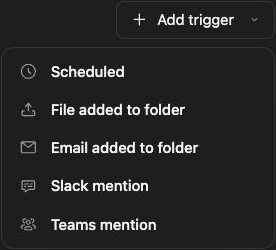
- Choose a supported trigger type.
- For a schedule, set the offered cadence, time, and time zone.
- For a file or email trigger, choose the watch folder and any subfolder option.
- For a collaboration mention trigger, select the supported integration and scope.
- Resolve Needs setup, then enable the trigger and confirm its activation state.
A Friday launch review can use a weekly schedule at 10:00 a.m. in the team’s time zone. Confirm that zone rather than assuming the browser’s local time.
Understand event scope
Section titled “Understand event scope”File-added and email-added triggers watch their configured Redbelt folders. Slack and Microsoft Teams mention triggers require working integration and event delivery setup. Connecting a provider account alone does not configure every event subscription.
Check and pause automatic work
Section titled “Check and pause automatic work”Inspect a resulting run after the next event or schedule time. Compare its inputs and output with your manual run. Disable the relevant trigger when you want to stop future automatic starts; a saved workflow can still be run manually.
If nothing runs, check activation, time zone, watch scope, integration health, and usage limits. If it runs too often, review the selected event scope before reenabling it.
Related: automations, editor, and run results.