Add Content to Knowledge
Knowledge stores content that you can reopen and use in threads or workflows. Upload into the folder where you want to find the content later.
What Processing Adds
Section titled “What Processing Adds”Upload transfers the file; processing makes its supported content available to Redbelt’s reading and search features. These are separate stages, which is why a completed transfer can still show a processing state.
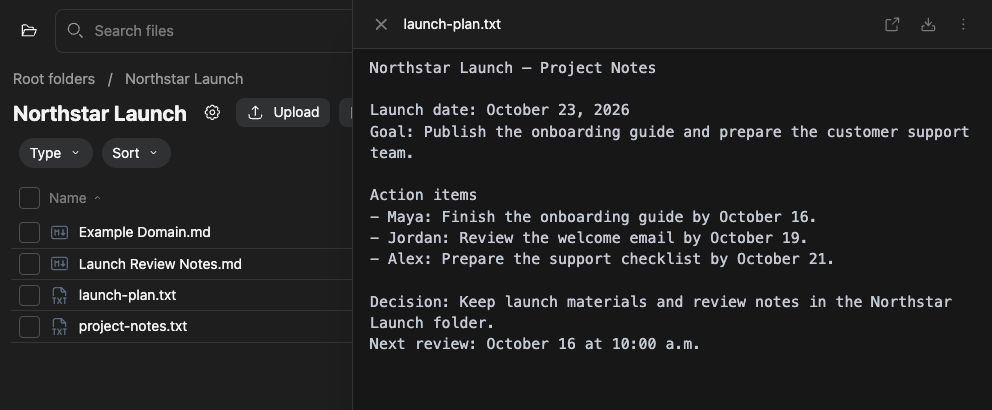
For a text launch plan, open the preview and check that the owners and dates are readable before asking the agent to summarize it. Scanned pages, audio, and other formats may need additional processing providers. A connector imports a selected external source over time, while an upload adds the content you chose at that moment.
Before you start
Section titled “Before you start”Open Knowledge and choose a folder where you can add files. Some connected folders are managed by their connector and cannot accept normal uploads. Each file must be no larger than 512 MiB.
Add a file
Section titled “Add a file”- Open the destination folder.
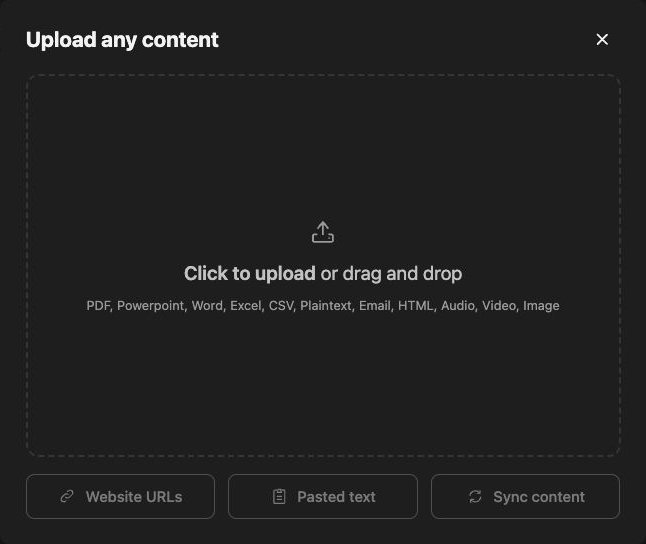
- Click its upload control to open Upload any content.
- Click Click to upload and choose a supported file, or drag the file onto the drop area.
- Watch the upload progress. Processing can continue after the file transfer finishes.
- Find the file in the folder and open it to check its content.
The dialog lists supported format families, including documents, spreadsheets, presentations, text, email, images, audio, and video. Format and processing support can depend on your deployment’s configured providers.
Add pasted text
Section titled “Add pasted text”- In Upload any content, choose Pasted text.
- Paste the text and click Upload.
- If prompted to choose a destination, select a writable folder and click Add.
- Wait for processing, then open the new Markdown file.
Redbelt generates a title for the pasted content. Use a short, non-sensitive sample for your first test.
Add a public webpage
Section titled “Add a public webpage”Choose Website URLs, enter one public URL per line, and click Upload. Choose a destination if prompted. Redbelt attempts to retrieve the page and save its content as Markdown.
Pages behind sign-in, blocked pages, and pages that cannot be retrieved may fail. A queued import does not prove the webpage’s content was fetched.
Sync content from another app
Section titled “Sync content from another app”Choose Sync content to open connector setup. A connector imports content from the connected account according to its configuration. This is a separate path from uploading a local file.
Troubleshooting
Section titled “Troubleshooting”If the upload control is unavailable, check the folder’s permissions and whether it is managed by a connector. If a file reports an error, inspect its processing status and confirm its size and format. For a webpage, try a public page you can open without signing in.
If progress stops updating with several Redbelt tabs open, close extra tabs and reopen the destination folder before starting another upload. The file may already be ready; open it to check its content.
Related: start a thread and upload through the API.