Google Chat
Use Google Chat to find accessible spaces, read or search messages, and send a reviewed update to an exact space.
Before you start
Section titled “Before you start”Open Customize → Plugins and select this plugin. Add installs an available package; Uninstall means it is already installed. An offered Update refreshes its package version. Your deployment and administrator policy determine availability.
When Add Account is offered, follow its connection instructions using an authorized account that owns or can access the intended resource. If several accounts are connected, check the selected account and Default before the task. Reconnect refreshes an expired connection; an administrator setup notice needs administrator configuration.
Enable the plugin for the selected agent or task. On an installed plugin’s Tools table, check Enabled and the Approval setting for the operations you intend to use. New tasks use these settings; a pending approval still needs a decision. See agent setup and action approvals.
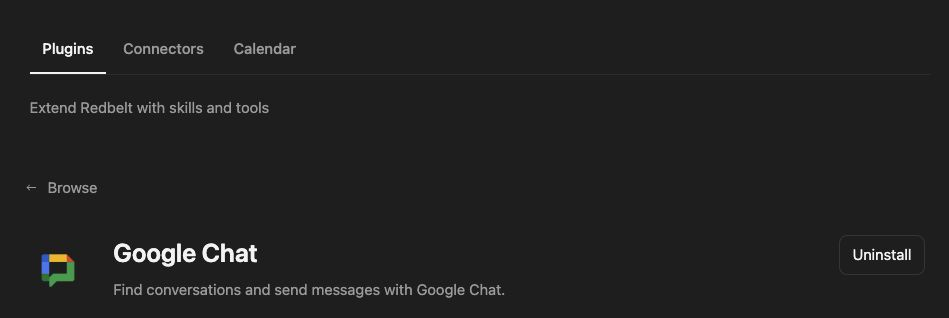
Plugin details under Customize → Plugins. The button shows the current installation state.
Post a project update
Section titled “Post a project update”- Ask Redbelt to list spaces visible to the connected Google Chat account.
- Select the space where you want to post from the returned results. Use its API resource name, such as
spaces/..., rather than its browser URL. - Read recent messages to avoid repeating an update that was already posted.
- Draft a short milestone update and review both the wording and destination.
- Request the send, then inspect the returned message and read the space again to confirm it appears.
List my Google Chat spaces and ask me which one to use. Read recent messages in the selected space, then prepare a short update from the milestones I provide. Show me the exact space and message before sending it.
Keep discovery and delivery separate
Section titled “Keep discovery and delivery separate”Listing spaces identifies destinations. Reading messages provides context from one space. Search narrows messages by query. Sending requires the selected space ID and message text.
The connected account and Google’s app configuration determine which spaces are accessible. A visible browser thread alone does not prove that the API account can post there. These tools are currently thread tools; the Workflow column below shows whether your version exposes a direct workflow action.
A returned API error is not a delivered message. If a run stops after the send, check the space before retrying to avoid duplicate posts.
Tool Reference
Section titled “Tool Reference”Thread and workflow availability are listed separately. A tool must also be enabled for your task and allowed by its account and administrator policy. Configure workflow app actions using only actions offered by the current picker.
Available Tools
Section titled “Available Tools”| Tool | Required Fields | Thread | Workflow |
|---|---|---|---|
google_chat.get_messages |
space_id |
Yes | No |
google_chat.list_spaces |
No mandatory top-level fields | Yes | No |
google_chat.search_messages |
query |
Yes | No |
google_chat.send_message |
space_id, message_text |
Yes | No |
Required fields above are the schema minimum. The target, selected operation, or account can impose additional requirements.
google_chat.get_messages — Get messages from a Google Chat space.
Optional fields: order_by, page_size.
google_chat.list_spaces — List Google Chat spaces.
Optional fields: page_size, space_type.
google_chat.search_messages — Search Google Chat messages.
Optional fields: page_size, space_id.
google_chat.send_message — Send a message to a Google Chat space.
Optional fields: thread_key.
Troubleshoot
Section titled “Troubleshoot”A 404 can indicate an incorrect resource name or an inaccessible space. Relist spaces through the connected account. If the space is absent or sending still fails, ask your administrator to check the Google Chat integration configuration.
Provider details: Google Chat help.