Google Calendar
Use Google Calendar to find events, create a clearly timed appointment, and revise an event using its returned identifier.
Before you start
Section titled “Before you start”Open Customize → Plugins and select this plugin. Add installs an available package; Uninstall means it is already installed. An offered Update refreshes its package version. Your deployment and administrator policy determine availability.
When Add Account is offered, follow its connection instructions using an authorized account that owns or can access the intended resource. If several accounts are connected, check the selected account and Default before the task. Reconnect refreshes an expired connection; an administrator setup notice needs administrator configuration.
Enable the plugin for the selected agent or task. On an installed plugin’s Tools table, check Enabled and the Approval setting for the operations you intend to use. New tasks use these settings; a pending approval still needs a decision. See agent setup and action approvals.
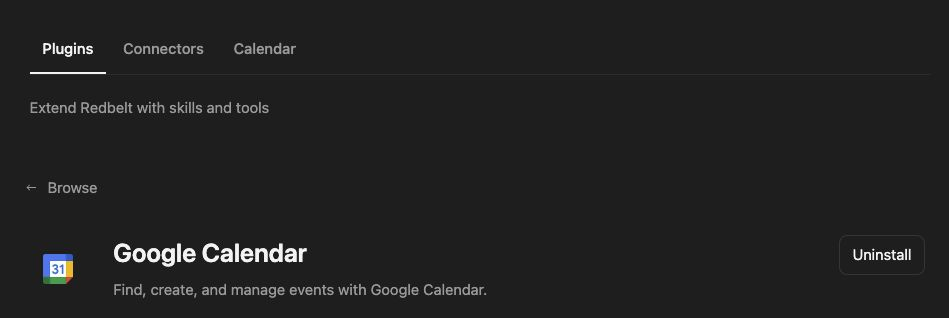
Plugin details under Customize → Plugins. The button shows the current installation state.
Schedule a project review
Section titled “Schedule a project review”- Specify the calendar account, exact date, time zone, duration, and attendees, if any.
- Ask Redbelt to read events in the relevant time window and identify conflicts.
- Review the proposed event title, date, start and end times, and time zone. Supply those details explicitly.
- Request creation once the time and destination are correct. Including attendees can send invitations.
- Read events for that window again and check the returned event ID, start, end, and calendar link.
Ask me for the date, start and end times, and time zone for a Project Review. Check my connected Google Calendar for conflicts. If the time is free, prepare the event with no attendees and show me the details before creating it.
Revise the intended event
Section titled “Revise the intended event”Reading events supports time-bounded discovery. Modify an event using its returned ID and the specific fields you intend to change. State the date and time zone again when rescheduling; a phrase such as “Friday at noon” leaves important details unresolved.
The current catalog’s calendar-list and event-delete entries are disabled. Do not offer those operations as available plugin actions. Creation and event reads can appear in the workflow picker; other actions depend on the availability table below.
A connected calendar is distinct from Redbelt’s meeting features. See meeting setup for the separate meeting experience.
Tool Reference
Section titled “Tool Reference”Thread and workflow availability are listed separately. A tool must also be enabled for your task and allowed by its account and administrator policy. Configure workflow app actions using only actions offered by the current picker.
Available Tools
Section titled “Available Tools”| Tool | Required Fields | Thread | Workflow |
|---|---|---|---|
google_calendar.create_event |
summary, start_time, end_time |
Yes | Yes |
google_calendar.get_events |
No mandatory top-level fields | Yes | Yes |
google_calendar.modify_event |
event_id |
Yes | No |
Required fields above are the schema minimum. The target, selected operation, or account can impose additional requirements.
google_calendar.create_event — Create a new event on Google Calendar.
Optional fields: add_google_meet, attendees, calendar_id, description, location, timezone.
google_calendar.get_events — Get events from a Google Calendar.
Optional fields: calendar_id, max_results, query, relative_date_range, time_max, time_min.
google_calendar.modify_event — Modify an existing Google Calendar event.
Optional fields: add_google_meet, attendees, calendar_id, description, end_time, location, reminders, start_time, summary, timezone, transparency, use_default_reminders.
Troubleshoot
Section titled “Troubleshoot”If the saved time looks wrong, compare the explicit time zone and offset in the returned event. For a failed write, inspect the calendar window before trying creation again.
Provider details: Google Calendar help.