Word documents
Use Word documents to create, revise, or redline a Word file and inspect its rendered pages before returning the final document.
Before you start
Section titled “Before you start”Open Customize → Plugins and select this plugin. Choose Add if it is available and not installed; Uninstall means it is already installed. Availability depends on the deployment and administrator policy. Enable the plugin for the selected agent or task using agent setup.
This package does not require a separate external app account for its own Redbelt tools. Its work can still depend on configured services, sandbox availability, selected files, or a separate authorized connection. Adding the package does not grant access to additional data. Review the installed tool controls and handle any requested action approval.
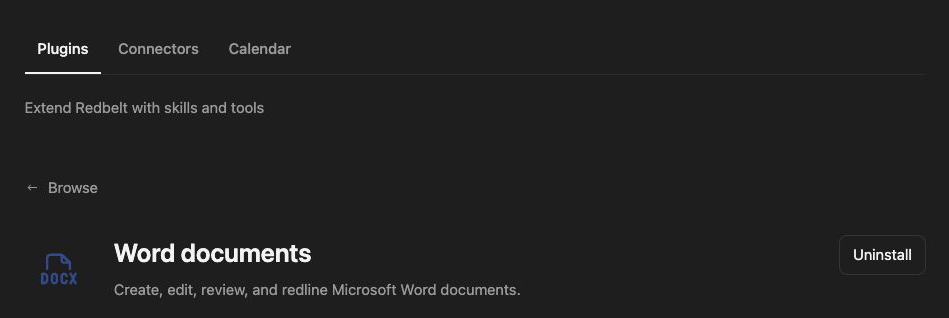
Plugin details under Customize → Plugins. The button shows the current installation state.
Create a launch brief
Section titled “Create a launch brief”- Provide source notes or an existing Word file and describe the required output.
- Ask Redbelt to inspect the source’s content and structure before editing.
- Draft a one-page project brief with goals, milestones, owners, and open decisions.
- Request a clean revision or tracked changes explicitly when editing an existing file.
- Ask Redbelt to render and inspect the document, fix layout problems, and return the checked
.docx.
Create a one-page Project Brief from the notes I attach, with a short summary and a milestone table. Keep unresolved owners blank. Render and inspect the pages for clipped text and awkward table breaks before returning the Word file.
Choose the editing mode
Section titled “Choose the editing mode”New-document creation, a clean edit, and a redline serve different review needs. For a redline, state what should change and preserve unrelated content. For an established template, provide the actual source file and ask Redbelt to retain its headings, styles, headers, footers, and page layout.
Document processing uses the sandbox’s file helpers rather than a native Google Docs connection. Readability in extracted text does not prove that the Word layout is correct. Inspect rendered pages, especially tables, page breaks, and repeated headers.
The final response should include the actual file artifact. A prose description of edits is not the deliverable. Use Google Docs when the target is an existing native Google document.
Tool Reference
Section titled “Tool Reference”Thread and workflow availability are listed separately. A tool must also be enabled for your task and allowed by its account and administrator policy. Configure workflow app actions using only actions offered by the current picker.
This package supplies an agent skill and sandbox helpers rather than a separate named app-action tool catalog. Its task workflow is described above.
Troubleshoot
Section titled “Troubleshoot”If rendering exposes broken layout, request a corrected file before accepting it. If an edit loses formatting, compare it with the supplied source and narrow the requested change.