Sync Local File Sync
Local File Sync uses the Redbelt File Sync desktop app on the computer that holds your files. The browser manages the connection, while the desktop app scans and uploads the files. The computer and app must remain available for that work.
Before you start
Section titled “Before you start”You need permission to connect local content and a computer with access to the source folder. Review which files the folder contains before selecting it. Use a focused project folder rather than your entire home directory.
Set up the desktop source
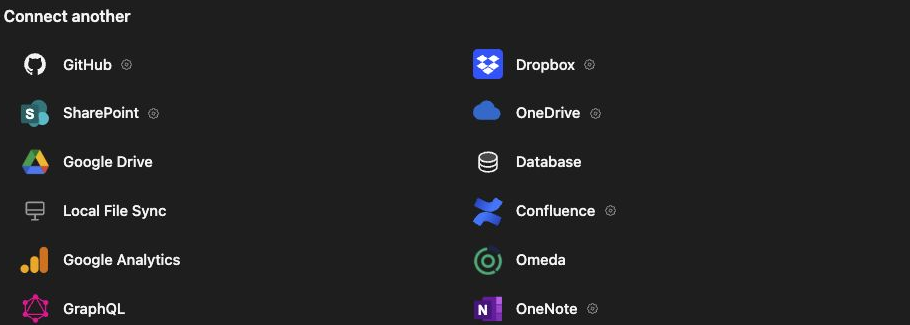
Section titled “Set up the desktop source”- Open Knowledge → Connectors and choose Local File Sync.
- Download Redbelt File Sync for macOS or Windows using the offered download.
- Install and open it on the computer holding the files, then sign in there.
- Choose Add Folder in the desktop app.
- Select the source folder and configure its schedule and filters.
- Preview the files and start syncing through the desktop app’s controls.
- Return to the connection in Redbelt and inspect its folder and status.
Change the folder and its sync settings in the desktop app. The browser’s Folder on Sync Computer section identifies the saved source; it does not browse arbitrary folders on your current computer.
Request and review another sync
Section titled “Request and review another sync”Use the connection’s local preview controls to request a scan of the saved folder configuration. Review the file count, then click Start sync. That action signals the desktop app. Closing the browser window does not cancel the request, but shutting down the sync computer or its app prevents it from carrying out the request.
Once the run finishes, open a resulting file in Knowledge and compare it with the source. Disable Sync pauses the local connection; Enable Sync resumes it. Inspect failures rather than treating a scan count as proof that uploads completed.
Troubleshooting
Section titled “Troubleshooting”If scans or uploads do not progress, confirm that the app is open, signed in, and connected on the correct computer. Check folder permissions, include/exclude filters, and any file-size limit. Source contents can change after the scan, so a preview and later import need not have identical counts.
Related: upload a file directly, organize Knowledge, and file triggers.