Use PDF to read source pages, create a document, fill supported forms, and inspect the rendered result before returning it.
Before you start
Section titled “Before you start”Open Customize → Plugins and select this plugin. Choose Add if it is available and not installed; Uninstall means it is already installed. Availability depends on the deployment and administrator policy. Enable the plugin for the selected agent or task using agent setup.
This package does not require a separate external app account for its own Redbelt tools. Its work can still depend on configured services, sandbox availability, selected files, or a separate authorized connection. Adding the package does not grant access to additional data. Review the installed tool controls and handle any requested action approval.
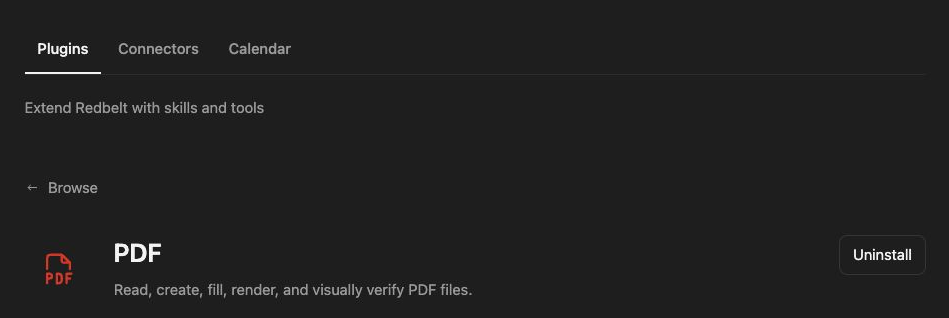
Plugin details under Customize → Plugins. The button shows the current installation state.
Produce a reviewed launch handout
Section titled “Produce a reviewed launch handout”- Provide the source material and specify the intended page size and audience.
- Ask Redbelt to read the actual source pages, using OCR when scanned text requires it.
- Prepare a concise project handout with milestones and open decisions.
- Render and inspect every generated or changed page for clipping, unreadable text, and misplaced elements.
- Return the checked PDF and describe any source-reading limitations.
Create a two-page project handout from the notes I attach. Put the project goal and milestones on page one, with risks and decisions on page two. Inspect every rendered page before returning the PDF.
Reading and form filling are different tasks
Section titled “Reading and form filling are different tasks”Extracted text can miss layout, tables, or scanned content. Ask for a page-level review when the document’s visual arrangement matters. A searchable text layer and a scanned page need different handling; missing extracted text should not be described as an empty page without checking it.
For a form, inspect whether it contains actual fillable fields or needs supported annotations. Provide exact field values and review their placement after saving. Text drawn over a blank space is not automatically a native fillable field.
Keep working files separate from the final deliverable and inspect all changed pages. A command that writes a PDF is not sufficient proof that the pages are correct.
Tool Reference
Section titled “Tool Reference”Thread and workflow availability are listed separately. A tool must also be enabled for your task and allowed by its account and administrator policy. Configure workflow app actions using only actions offered by the current picker.
This package supplies an agent skill and sandbox helpers rather than a separate named app-action tool catalog. Its task workflow is described above.
Troubleshoot
Section titled “Troubleshoot”If text extraction is incomplete, inspect the page images and use OCR where appropriate. If form values do not appear correctly, check the field structure and rendered positions before returning the file.