Sync Google Analytics
The Google Analytics connector saves daily GA4 reports as JSON files in Knowledge. Those files can support analysis alongside your content. File counts, report-row counts, page views, and engagement time are different measurements.
Before you start
Section titled “Before you start”You need a Google account with access to the intended GA4 property and permission to create a connector. Use the numeric property ID, rather than a website URL or measurement ID. Confirm the property and reporting dates in Analytics before importing.
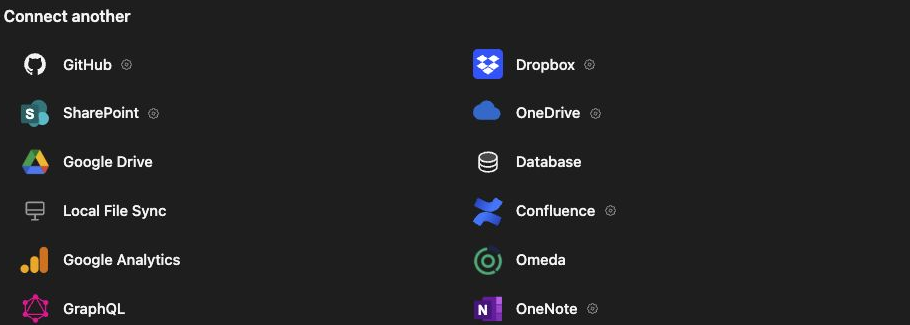
Preview and import a report
Section titled “Preview and import a report”- Open Knowledge → Connectors and choose Google Analytics.
- Complete the offered account sign-in and return to the connection setup.
- Enter a Connection name and the numeric GA4 property ID.
- Set Import changes starting to the first day of the full import. The current form accepts dates within the last year, through yesterday.
- Set Preview one day to a day with known activity, on or after the import start.
- Click Preview sample and inspect each report’s row count and warnings.
- Click Save and preview import to review the full import.
- Review the generated daily files and click Start sync.
Changing a date does not fetch a new sample. Click Preview sample after changing settings; saving is enabled only for a preview matching the current configuration. The one-day sample does not estimate traffic across the entire historical import.
Read a synced JSON file
Section titled “Read a synced JSON file”Open the file for your chosen day in Knowledge. Check source.property_id,
window_start, window_end, and report_name. Inspect request.dimensions and
request.metrics, then the actual rows and response_summary.row_count.
The default article_metrics_daily report requests date, contentId,
fullPageUrl, and pageTitle. Its metrics include screenPageViews, activeUsers,
sessions, engagedSessions, and userEngagementDuration. A report with three
page views need not contain three rows: a row groups the requested dimensions.
Check empty or unexpected results
Section titled “Check empty or unexpected results”A completed sync with rows: [] confirms an empty report was saved, not that the
website had no activity. Confirm the property, day, requested dimensions, and any
filters. Article-specific reports depend on the site’s article identifier setup;
compare them with a matching Analytics report before drawing conclusions.
The current setup form does not offer a report selector. If the configured report cannot answer a general page-traffic question, ask the administrator to review its report definition. Re-run the preview and import after a configuration correction; an older JSON file does not change just because a new preview shows different data.
Related: search Knowledge and use Knowledge in threads.