Google Sheets
Use Google Sheets to create a workbook, inspect its tabs, read a bounded range, and change selected values without replacing the whole spreadsheet.
Before you start
Section titled “Before you start”Open Customize → Plugins and select this plugin. Add installs an available package; Uninstall means it is already installed. An offered Update refreshes its package version. Your deployment and administrator policy determine availability.
When Add Account is offered, follow its connection instructions using an authorized account that owns or can access the intended resource. If several accounts are connected, check the selected account and Default before the task. Reconnect refreshes an expired connection; an administrator setup notice needs administrator configuration.
Enable the plugin for the selected agent or task. On an installed plugin’s Tools table, check Enabled and the Approval setting for the operations you intend to use. New tasks use these settings; a pending approval still needs a decision. See agent setup and action approvals.
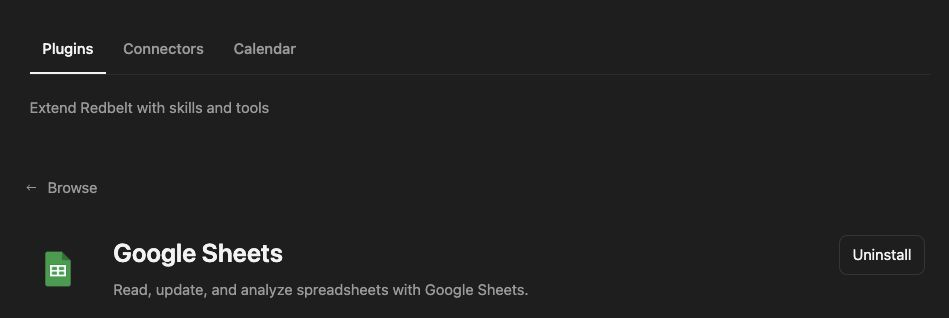
Plugin details under Customize → Plugins. The button shows the current installation state.
Build a launch tracker
Section titled “Build a launch tracker”- Ask Redbelt to create a workbook such as Project Tracker with a Milestones tab, or locate the existing workbook if one already exists.
- Inspect workbook metadata to confirm the tab names.
- Prepare rows with the columns Milestone, Owner, Due Date, and Status.
- Review the exact target range and two-dimensional row values before writing them.
- Read the same range back and compare it with the intended values.
Prepare a Project Tracker with a Milestones tab and columns for Milestone, Owner, Due Date, and Status. Use the milestones and dates I provide, and leave unknown owners blank. Show me the workbook title, range, and rows before creating or saving them.
Bound every edit
Section titled “Bound every edit”An A1 range such as Milestones!A1:D4 identifies both the tab and cells. Read only the range you need, then write only that range. Workbook listing, metadata inspection, tab creation, and value reads each have distinct tools.
Values are an array of rows, with each row an array of cells. RAW preserves literal input; USER_ENTERED applies spreadsheet interpretation, including formulas. Clearing requires the clear option; omitting values alone is not a complete write request. Check formulas and dates after saving.
Only actions marked Yes in the Workflow column below are directly available as plugin workflow steps. The plugin’s value tools do not expose a general chart or formatting API. For a downloadable workbook with layout and formula work, see Spreadsheets.
Tool Reference
Section titled “Tool Reference”Thread and workflow availability are listed separately. A tool must also be enabled for your task and allowed by its account and administrator policy. Configure workflow app actions using only actions offered by the current picker.
Available Tools
Section titled “Available Tools”| Tool | Required Fields | Thread | Workflow |
|---|---|---|---|
google_sheets.create_sheet |
spreadsheet_id, sheet_name |
Yes | No |
google_sheets.create_spreadsheet |
title |
Yes | Yes |
google_sheets.get_spreadsheet_info |
spreadsheet_id |
Yes | No |
google_sheets.list_spreadsheets |
No mandatory top-level fields | Yes | No |
google_sheets.modify_values |
spreadsheet_id, range_name |
Yes | No |
google_sheets.read_values |
spreadsheet_id |
Yes | No |
Required fields above are the schema minimum. The target, selected operation, or account can impose additional requirements.
google_sheets.create_sheet — Create a sheet in an existing spreadsheet.
google_sheets.create_spreadsheet — Create a Google Spreadsheet.
Optional fields: sheet_names.
google_sheets.get_spreadsheet_info — Get metadata about a spreadsheet.
google_sheets.list_spreadsheets — List spreadsheets from Google Drive.
Optional fields: max_results, query.
google_sheets.modify_values — Write, update, or clear values in a Google Sheet range.
Optional fields: clear_values, value_input_option, values.
google_sheets.read_values — Read values from a bounded Google Sheet range.
Optional fields: end_row, max_chars, max_columns, max_rows, range_name, sheet_name, start_row.
Troubleshoot
Section titled “Troubleshoot”For an invalid range, verify the exact tab name and boundaries. For unexpected dates or formulas, check the selected value-input mode and read the saved cells back.
Provider details: Google Sheets help.