Threads
Use Threads to find and read authorized Redbelt threads, rename or archive a selected thread, and delete a thread when explicitly intended.
Before you start
Section titled “Before you start”Open Customize → Plugins and select this plugin. Choose Add if it is available and not installed; Uninstall means it is already installed. Availability depends on the deployment and administrator policy. Enable the plugin for the selected agent or task using agent setup.
This package does not require a separate external app account for its own Redbelt tools. Its work can still depend on configured services, sandbox availability, selected files, or a separate authorized connection. Adding the package does not grant access to additional data. Review the installed tool controls and handle any requested action approval.
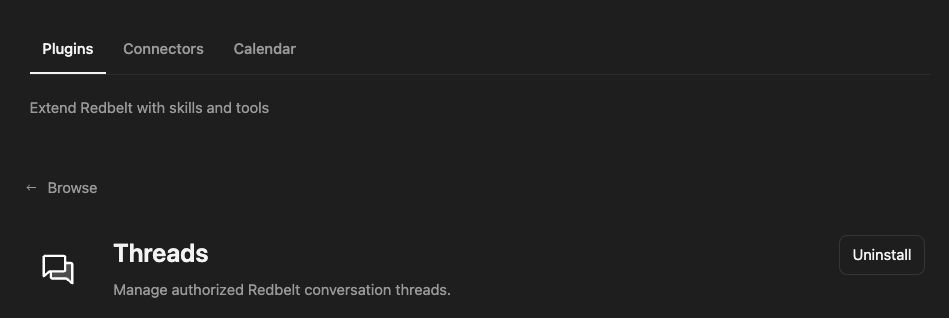
Plugin details under Customize → Plugins. The button shows the current installation state.
Recover a previous decision
Section titled “Recover a previous decision”- Search for a project topic you provide or list recent threads.
- Select the returned thread IDs and read the relevant turns.
- Ask for the decisions and unresolved questions with references to the threads.
- If a thread needs a clearer label, review and apply a title such as Project Readiness Review.
- Read the updated thread metadata to confirm the change.
Find my threads about the project topic I provide and read the relevant recent turns. Summarize decisions and open questions, with thread references. Do not rename, archive, or delete anything.
Preserve context during cleanup
Section titled “Preserve context during cleanup”Recent listing and search identify candidates; bounded reads provide selected thread history. A recent-turn limit can omit earlier decisions, so say when the retrieved history does not cover the whole thread. Read additional context deliberately rather than assuming a short excerpt is complete.
Updating supports thread metadata, including the title and archived state. Archive when you want to retain the history while removing the thread from the active list. Deleting is a separate action; confirm the exact target before requesting it.
Tasks and threads are different objects. Use Tasks for follow-up assignments rather than renaming a thread as though that creates a task.
Tool Reference
Section titled “Tool Reference”Thread and workflow availability are listed separately. A tool must also be enabled for your task and allowed by its account and administrator policy. Configure workflow app actions using only actions offered by the current picker.
Available Tools
Section titled “Available Tools”| Tool | Required Fields | Thread | Workflow |
|---|---|---|---|
threads.delete |
target_thread_id |
Yes | No |
threads.read |
thread_ids |
Yes | No |
threads.recent |
No mandatory top-level fields | Yes | No |
threads.search |
query |
Yes | No |
threads.update |
target_thread_id |
Yes | No |
Required fields above are the schema minimum. The target, selected operation, or account can impose additional requirements.
threads.delete — Permanently delete one of the person’s chats.
threads.read — Read recent turns from one or more of the person’s chats.
Optional fields: before_turn, turns.
threads.recent — List the person’s most recent chats, newest first.
Optional fields: before, limit.
threads.search — Search the person’s past chats by topic or words used.
Optional fields: limit.
threads.update — Rename, tag, archive or move one of the person’s chats.
Optional fields: add_tags, archived, folder_id, remove_from_folder, remove_tags, set_tags, tag_colors, title.
Troubleshoot
Section titled “Troubleshoot”If search returns an unexpected thread, verify the title and returned ID before reading or changing it. A permission failure means the selected history is not accessible to the current task.