Create and Run Your First Workflow
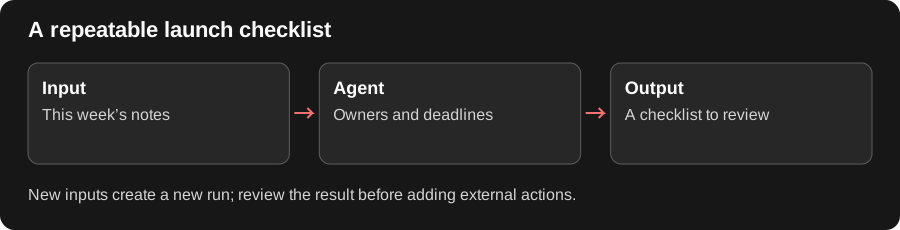
A workflow connects explicit inputs and actions. Start with one input, one agent step, and one output before adding external writes or scheduled triggers.
Why Use a Workflow?
Section titled “Why Use a Workflow?”A thread is useful for discovering what you need. A workflow is useful once the steps should repeat. You supply new launch notes each week; the configured agent turns them into the same kind of checklist; the output exposes the result.
Each run is a separate attempt with its own inputs and results. Changing the saved workflow affects later runs, not the wording already produced by a previous run. Begin with a readable text output so you can check dates and owners before adding file creation, notifications, or automatic starts.
Before you start
Section titled “Before you start”You need permission to create a workflow, available model usage for agent steps, and access to any selected Knowledge. Connected app actions have additional account and approval requirements.
Build a launch-summary workflow
Section titled “Build a launch-summary workflow”- Open Workflows and choose New workflow.
- Describe the result: “Turn launch notes into an owner-and-deadline checklist.”
- Review the generated flow, or use Advanced Editor to configure the steps.
- Add a text Input for the launch notes.
- Configure an Agent to turn those notes into a concise checklist.
- Connect an Output to the agent’s result.
- Resolve validation issues and wait for Saved.
- Open the run view, fill the requested input, and click Run.
For a first run, paste a few project notes that include actions, owners, and deadlines. Check that the workflow retains the dates you supplied and does not replace them with today’s date.
Check the result
Section titled “Check the result”Inspect the run’s output and the step results. A request accepted by the server or a running indicator is not a finished workflow. If a step waits for input or approval, resolve that requirement and confirm completion.
If workflow generation is unavailable, check the workspace’s model setup or use the offered manual editor. Test manually before enabling an automatic trigger.
Related: editor, inputs, and run results.