Configure Integrations and Providers
Integration configuration establishes how Redbelt connects to a provider. An end user’s connected account is a separate authorization to use that provider.
Deployment Setup and User Sign-In Have Different Jobs
Section titled “Deployment Setup and User Sign-In Have Different Jobs”Administrator configuration makes a provider available to Redbelt: for example, the application settings needed to offer a Google connection. User sign-in authorizes a particular account. That account must still be allowed to access the file, calendar, or other target.
When diagnosing setup, work in that order: provider readiness, account authorization, target access, then the actual operation. A verified configuration is useful evidence for the first step, but it does not prove that a user’s message was delivered or a connector imported the expected files.
Configure a provider
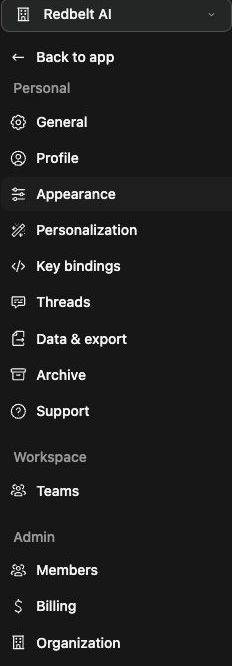
Section titled “Configure a provider”- Open Settings → Integrations as an authorized administrator.
- Select the relevant integration and review its current status.
- Open its configuration or setup instructions.
- Enter the required public fields and credentials through the dedicated controls.
- Save the configuration as a draft when the setup flow requires it.
- Run the offered verification and inspect the result.
- Apply or activate the verified configuration through the offered control.
For provider-account integrations, confirm the deployment’s callback and account audience settings. For shared email or SMS sending, review sender identity and recipient requirements separately. Keep secrets out of screenshots, prompts, workflow inputs, and shared setup notes.
Confirm user-facing readiness
Section titled “Confirm user-facing readiness”Return to the plugin or connector surface and check that setup is available. Then perform a bounded real operation with the intended account. Passing a configuration check does not establish completed OAuth approval, delivered messages, or successful file synchronization.
If users see administrator setup required, inspect provider configuration and its active state. If setup is configured but authorization fails, check the provider-side app configuration and account restrictions. Use normal supported sign-in paths; this guide does not document temporary verification workarounds.
Related: deployment settings, app actions, and Google Drive connector.