Google Slides
Use Google Slides to create a presentation, inspect its pages and object IDs, and apply a deliberate batch of changes to an existing deck.
Before you start
Section titled “Before you start”Open Customize → Plugins and select this plugin. Add installs an available package; Uninstall means it is already installed. An offered Update refreshes its package version. Your deployment and administrator policy determine availability.
When Add Account is offered, follow its connection instructions using an authorized account that owns or can access the intended resource. If several accounts are connected, check the selected account and Default before the task. Reconnect refreshes an expired connection; an administrator setup notice needs administrator configuration.
Enable the plugin for the selected agent or task. On an installed plugin’s Tools table, check Enabled and the Approval setting for the operations you intend to use. New tasks use these settings; a pending approval still needs a decision. See agent setup and action approvals.
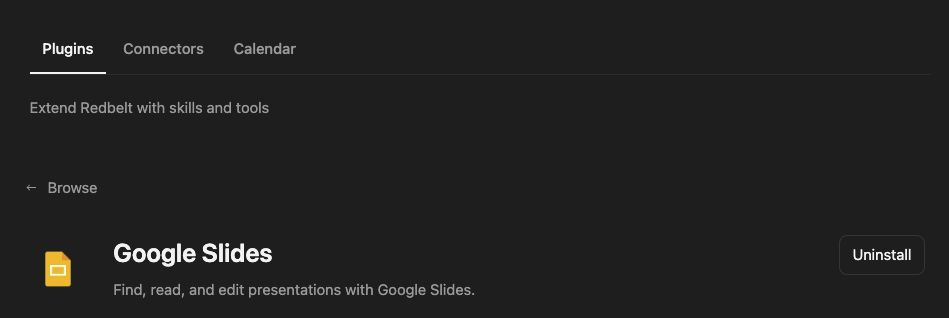
Plugin details under Customize → Plugins. The button shows the current installation state.
Create a launch review deck
Section titled “Create a launch review deck”- Choose a descriptive title, such as Project Review, and ask Redbelt to create the presentation.
- Read the returned presentation to inspect its current pages and objects. A new presentation is not a finished deck.
- Plan four slides: Goals, Milestones, Risks, and Decisions Needed.
- Review the intended page and text changes before requesting the batch update.
- Read the updated presentation and affected pages, then open the returned link to review the layout.
Prepare a four-slide Project Review from the notes I attach, covering Goals, Milestones, Risks, and Decisions Needed. Use a short heading and no more than four bullets per slide. Show me the outline first, then create and populate the Google Slides presentation after I approve it.
Target current objects
Section titled “Target current objects”A presentation read returns the current object IDs. A page read examines a particular page. Batch updates need the presentation ID and valid update requests targeting those objects; an old page ID may no longer exist after another edit.
Inspect all affected slides after the batch. A successful request does not prove that text fits or that the layout reads well. The catalog’s page-thumbnail entry is disabled, so use presentation and page reads plus the saved deck for review.
For PowerPoint file creation or editing, use PowerPoint. That package produces a downloadable .pptx rather than editing a native Google presentation.
Tool Reference
Section titled “Tool Reference”Thread and workflow availability are listed separately. A tool must also be enabled for your task and allowed by its account and administrator policy. Configure workflow app actions using only actions offered by the current picker.
Available Tools
Section titled “Available Tools”| Tool | Required Fields | Thread | Workflow |
|---|---|---|---|
google_slides.batch_update |
presentation_id, requests |
Yes | No |
google_slides.create_presentation |
title |
Yes | Yes |
google_slides.get_page |
presentation_id, page_object_id |
Yes | No |
google_slides.get_presentation |
presentation_id |
Yes | Yes |
Required fields above are the schema minimum. The target, selected operation, or account can impose additional requirements.
google_slides.batch_update — Apply batch updates to a presentation.
google_slides.create_presentation — Create a Google Slides presentation.
google_slides.get_page — Get details for a single presentation page.
google_slides.get_presentation — Get details for a Google Slides presentation.
Troubleshoot
Section titled “Troubleshoot”For a not-found object, reread the presentation and use its current IDs. For an interrupted write, inspect the deck before rerunning so you do not duplicate slides or text.
Provider details: Google Slides help.