Google Docs
Use Google Docs to search documents, read their text, create a brief, and make targeted text or formatting changes.
Before you start
Section titled “Before you start”Open Customize → Plugins and select this plugin. Add installs an available package; Uninstall means it is already installed. An offered Update refreshes its package version. Your deployment and administrator policy determine availability.
When Add Account is offered, follow its connection instructions using an authorized account that owns or can access the intended resource. If several accounts are connected, check the selected account and Default before the task. Reconnect refreshes an expired connection; an administrator setup notice needs administrator configuration.
Enable the plugin for the selected agent or task. On an installed plugin’s Tools table, check Enabled and the Approval setting for the operations you intend to use. New tasks use these settings; a pending approval still needs a decision. See agent setup and action approvals.
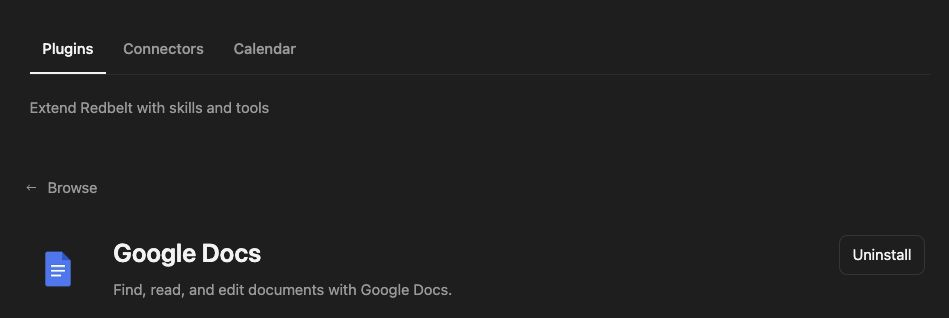
Plugin details under Customize → Plugins. The button shows the current installation state.
Create a project brief
Section titled “Create a project brief”- Search for existing briefs about your project and read the closest match, if there is one.
- Ask Redbelt to draft a one-page brief using the goals, dates, owners, and decisions stated in your notes.
- Review the title, content, and destination folder before requesting creation.
- Open the returned document link and check the saved text.
- For a revision, read the current document again, identify the text range, and change only that range.
Draft a one-page Project Brief from the notes I provide, with sections for Goals, Milestones, Owners, and Open Decisions. Preserve the dates in the notes. Show me the text and ask which Drive folder to use before creating the Google Doc.
Read before editing
Section titled “Read before editing”A search returns candidate documents; the content read provides the current document structure. Listing documents in a folder is useful when the location is known. Do not infer a document ID from its title alone.
Text edits use a document ID and start index, with optional end index, replacement text, or style. These indexes refer to the document’s current structure. A previous read can become stale after another edit. Ask Redbelt to reread and target the current range rather than guessing offsets.
The plugin works with native Google documents. Use Word documents when the deliverable is a .docx file, or Drive for general file discovery.
Tool Reference
Section titled “Tool Reference”Thread and workflow availability are listed separately. A tool must also be enabled for your task and allowed by its account and administrator policy. Configure workflow app actions using only actions offered by the current picker.
Available Tools
Section titled “Available Tools”| Tool | Required Fields | Thread | Workflow |
|---|---|---|---|
google_docs.create |
title |
Yes | Yes |
google_docs.get_content |
document_id |
Yes | Yes |
google_docs.list_docs_in_folder |
No mandatory top-level fields | Yes | No |
google_docs.modify_text |
document_id, start_index |
Yes | No |
google_docs.search |
query |
Yes | Yes |
Required fields above are the schema minimum. The target, selected operation, or account can impose additional requirements.
google_docs.create — Create a Google Doc.
Optional fields: content, folder_id.
google_docs.get_content — Get Google Doc content.
google_docs.list_docs_in_folder — List Google Docs in a folder.
Optional fields: folder_id, page_size.
google_docs.modify_text — Modify text in a Google Doc.
Optional fields: bold, end_index, font_family, font_size, italic, text, underline.
google_docs.search — Search Google Docs.
Optional fields: page_size.
Troubleshoot
Section titled “Troubleshoot”If a modification targets the wrong text or returns an invalid range, reread the document and reconcile the indexes. Confirm the selected account has edit access, not merely view access.
Provider details: Google Docs help.