Microsoft OneNote
Use Microsoft OneNote to discover notebooks and sections, read or search pages, and create a page in an existing section.
Before you start
Section titled “Before you start”Open Customize → Plugins and select this plugin. Add installs an available package; Uninstall means it is already installed. An offered Update refreshes its package version. Your deployment and administrator policy determine availability.
When Add Account is offered, follow its connection instructions using an authorized account that owns or can access the intended resource. If several accounts are connected, check the selected account and Default before the task. Reconnect refreshes an expired connection; an administrator setup notice needs administrator configuration.
Enable the plugin for the selected agent or task. On an installed plugin’s Tools table, check Enabled and the Approval setting for the operations you intend to use. New tasks use these settings; a pending approval still needs a decision. See agent setup and action approvals.
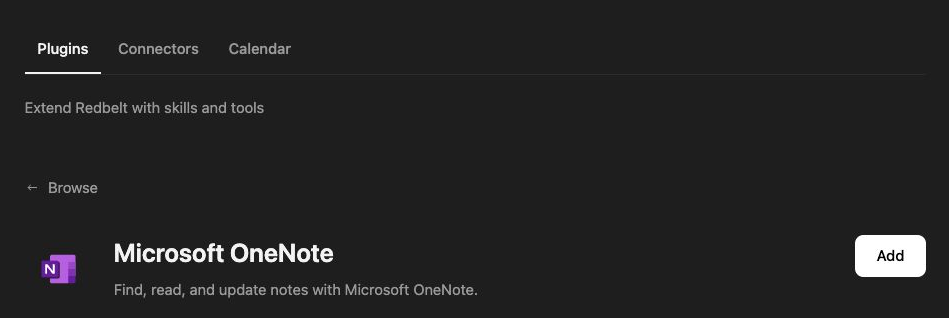
Plugin details under Customize → Plugins. The button shows the current installation state.
Save meeting decisions
Section titled “Save meeting decisions”- Ask Redbelt to discover the available notebooks and sections.
- Select the section where your notes belong by its returned section ID.
- Search for an existing decisions page for your project and read it if present.
- Draft a project decisions page from the notes you provide. Include the decision, owner, and follow-up date without filling gaps with invented information.
- Review the content and destination before requesting page creation.
- Read the returned page and inspect its saved content.
List my OneNote notebooks and sections, and ask me where to save a Project Decisions page. Use the meeting notes I provide, separating decisions from open questions. Show me the section and page content before saving it.
Work with the current tool set
Section titled “Work with the current tool set”Discovery provides the notebook hierarchy. Page search locates candidates. Reading a page supplies its content, and creation saves a new page in a chosen section. A notebook title, section title, and section ID are different inputs.
The current plugin does not expose an existing-page update tool. If you need to revise an existing page, use OneNote’s editor; do not create a duplicate page as though it were an update. Ask Redbelt to prepare the replacement text so you can review and apply it.
OneNote creation can accept HTML content. Preserve the intended headings and lists, and read the result to check that formatting and text survived.
Tool Reference
Section titled “Tool Reference”Thread and workflow availability are listed separately. A tool must also be enabled for your task and allowed by its account and administrator policy. Configure workflow app actions using only actions offered by the current picker.
Available Tools
Section titled “Available Tools”| Tool | Required Fields | Thread | Workflow |
|---|---|---|---|
microsoft_onenote.create_page |
section_id, title |
Yes | Yes |
microsoft_onenote.discover |
No mandatory top-level fields | Yes | Yes |
microsoft_onenote.get_page |
page_id |
Yes | Yes |
microsoft_onenote.search_pages |
query_text |
Yes | Yes |
Required fields above are the schema minimum. The target, selected operation, or account can impose additional requirements.
microsoft_onenote.create_page — Create a new OneNote page in a section.
Optional fields: body_html, body_text.
microsoft_onenote.discover — List OneNote notebooks, section groups, sections, or pages.
Optional fields: notebook_id, resource_type, section_group_id, section_id, top.
microsoft_onenote.get_page — Get OneNote page metadata and optionally HTML content.
Optional fields: include_content.
microsoft_onenote.search_pages — Search OneNote pages by Graph search when available, then title and HTML content.
Optional fields: include_content_matches, notebook_id, section_id, top.
Troubleshoot
Section titled “Troubleshoot”If a section is missing, discover the hierarchy again using the intended Microsoft account. If creation succeeds but the page looks incomplete, read the page content before retrying.
Provider details: OneNote documentation.