Browser
Use Browser to manage tabs, navigate pages, inspect diagnostics, and coordinate downloads or uploads in Redbelt’s sandbox browser. Computer handles visible page interaction.
Before you start
Section titled “Before you start”Open Customize → Plugins and select this plugin. Choose Add if it is available and not installed; Uninstall means it is already installed. Availability depends on the deployment and administrator policy. Enable the plugin for the selected agent or task using agent setup.
This package does not require a separate external app account for its own Redbelt tools. Its work can still depend on configured services, sandbox availability, selected files, or a separate authorized connection. Adding the package does not grant access to additional data. Review the installed tool controls and handle any requested action approval.
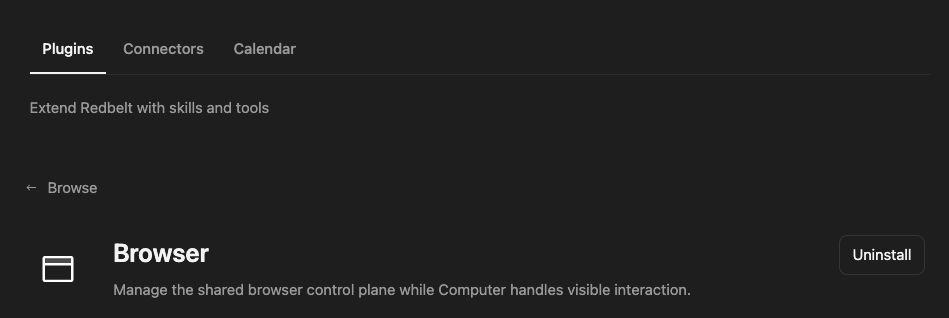
Plugin details under Customize → Plugins. The button shows the current installation state.
Download a report for analysis
Section titled “Download a report for analysis”- Ask Redbelt to list browser tabs and select the relevant tab, or open the public report page you specify.
- Navigate to the intended page and inspect its visible state through Computer.
- Use the page’s actual download control rather than assuming a guessed export URL exists.
- List downloads and inspect or wait for the selected download ID.
- Ask Redbelt to analyze the completed file from the workspace and return a checked deliverable.
Open the public report URL I provide in the sandbox browser. Inspect the page, download its CSV using the visible export control, and summarize the completed file. Tell me if sign-in or another user action is required.
Use Browser and Computer together
Section titled “Use Browser and Computer together”Tabs manages listing, creation, selection, and closing. Navigation supports going to a URL, back, forward, and refresh. Computer observes the page and clicks, types, or scrolls in the sandbox app. These are complementary controls, not two different accounts.
Download listing and waiting track transfer completion; seeing a download begin does not mean the file is ready. Uploads use a current file-chooser ID and permitted workspace paths. Uploading transmits those files to the selected page, so confirm the destination and content first.
Diagnostics provides bounded console or network observations for troubleshooting. It is not a substitute for visually checking the page or exposing private account data in a final response. The sandbox browser is distinct from your personal browser session.
Tool Reference
Section titled “Tool Reference”Thread and workflow availability are listed separately. A tool must also be enabled for your task and allowed by its account and administrator policy. Configure workflow app actions using only actions offered by the current picker.
Available Tools
Section titled “Available Tools”| Tool | Required Fields | Thread | Workflow |
|---|---|---|---|
browser.diagnostics |
source |
Yes | No |
browser.downloads |
action |
Yes | No |
browser.navigate |
action |
Yes | No |
browser.set_upload_files |
chooser_id, paths |
Yes | No |
browser.tabs |
action |
Yes | No |
Required fields above are the schema minimum. The target, selected operation, or account can impose additional requirements.
browser.diagnostics — Read the page’s console messages and network requests, with sensitive query values hidden.
Optional fields: tab_id, since_cursor, limit, levels, resource_types, status_classes.
browser.downloads — List, inspect, or wait for files the browser downloaded during the task.
Optional fields: download_id, since_cursor, timeout_ms, limit.
browser.navigate — Go to a URL or move the selected tab back, forward, or refresh it.
Optional fields: tab_id, url, wait_until, timeout_ms.
browser.set_upload_files — Attach files from the task to a file picker open in the browser.
browser.tabs — List, create, select, or close tabs in the shared visible browser.
Optional fields: tab_id, url, activate.
Troubleshoot
Section titled “Troubleshoot”If navigation succeeds but a task cannot interact, check that Computer is available and observe the current app. For a pending download, wait on its current ID and inspect the result before using the path.