Configure File and Email Inflow
File and email inflow bring incoming content into Redbelt according to the configured provider and destination. They are separate from manually uploading a file or sending an email through a plugin.
Receiving Is Only the First Stage
Section titled “Receiving Is Only the First Stage”An incoming email must reach the registered forwarding address, match the routing rule, and process into the intended destination. A workflow watching that folder is another stage. Inspect the folder first when troubleshooting, then the trigger and run.
For invoices, a dedicated destination and a clear sender or subject rule help keep unrelated mail out of the process. Rule priority matters when the offered routing configuration includes competing rules. Review the impact on existing workflows before changing a shared rule.
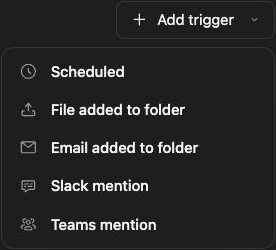
Open the Current Controls
Section titled “Open the Current Controls”Connector configuration opens from Knowledge → Connectors. Email inflow opens from Workflows or the email trigger’s Configure Email Inflow control. Older Data inflow settings links redirect to those destinations; they are not separate current configuration pages.
Configure Email Routing
Section titled “Configure Email Routing”- Open Configure Email Inflow for the intended email-trigger workflow.
- Select a registered forwarding address or choose Register a New Email.
- Review the forwarding instructions for that address.
- Choose All Emails or configure the offered sender, subject, or advanced conditions.
- Set a Rule Name, Destination Folder, and Priority.
- Review the routing impact, then click Save Rule.
- Save and activate the workflow separately when it is ready to run.
- Forward one non-sensitive message, then verify the resulting Knowledge content and any intended workflow run.
Saving a routing rule does not save or activate the workflow. Editing a shared rule can affect other workflows that rely on it. Check its current destination and acknowledge the displayed impact before applying that change.
For incoming vendor invoices, select a dedicated Invoices folder. For files from Drive, SharePoint, or a local computer, configure that source’s connector and verify its import before enabling a file-added trigger.
Check failures and downstream work
Section titled “Check failures and downstream work”Inspect source acceptance, processing status, destination permissions, and provider configuration separately. Email delivery and file processing can fail at different stages. If a workflow watches the folder, verify its trigger and resulting run after the file appears. Keep receiving credentials out of workflow text and screenshots.
Related: Knowledge uploads, workflow triggers, and integrations.