Manage Notifications
Notifications point you to activity that needs attention. They can include task changes, run results, and product messages according to the current deployment.
A Notification Points to Work
Section titled “A Notification Points to Work”An unread marker means you have not reviewed an item; it does not mean the underlying task or run is incomplete. Likewise, marking an item read does not finish the work, resolve a failed run, or approve an action.
Open the linked resource to check its current state. For a recurring alert, adjust the owning schedule or event scope if its frequency is wrong. Email, SMS, and app delivery have separate destinations and configuration; verify the destination you actually expect to receive the update.
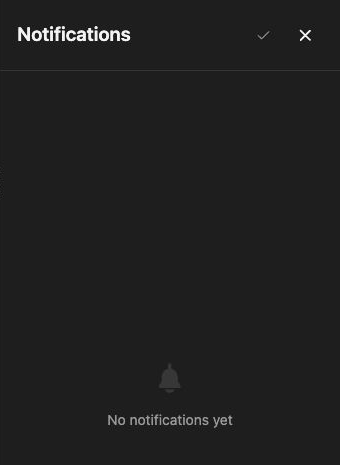
Read notifications
Section titled “Read notifications”- Open your account menu at the bottom of the navigation and choose Notifications.
- Review the unread items and their timestamps.
- Open an item to reach its linked thread or resource.
- Check the underlying run or task rather than relying only on the notification text.
- Use Mark all as read when you have reviewed the current list.
Opening a notification can mark it read. Read state and completion state are different: dismissing an alert does not complete a task or approve an action.
Check recurring notifications
Section titled “Check recurring notifications”For alerts produced by an automation or workflow, review that automation’s trigger and configured destination. If reminders are too frequent, adjust the owning schedule or event scope. Do not delete task data just to silence a reminder.
External email, SMS, or chat notifications can need additional configured senders, enrolled recipients, or plugin accounts. An in-app notification does not prove that an external message was delivered.
If an expected item is missing
Section titled “If an expected item is missing”Check the selected workspace, the underlying event’s result, and whether the resource is accessible to your account. A browser permission setting and the in-app drawer are separate surfaces; inspect the relevant destination.
Related: automations, task management, and SMS consent.