Sync Dropbox
The Dropbox connector imports selected content into Knowledge so you can use it in threads and workflows. Connecting an account and importing content are separate steps. This guide covers the connector, rather than individual plugin actions.
Before you start
Section titled “Before you start”You need access to the source folders, permission to create a connection in the current workspace, and an available Dropbox provider in your deployment. An administrator must configure an unavailable provider before you can connect it.
Select and import content
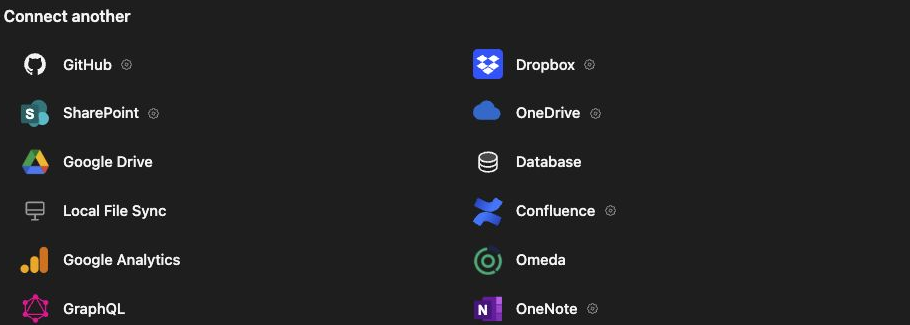
Section titled “Select and import content”- Open Knowledge, then Connectors, and choose Dropbox.
- Complete the offered sign-in using the account that can access your content.
- Return to Redbelt and choose the source content to sync.
- Review the selected scope and any offered file filters.
- Open the import preview and inspect its files, folders, and estimated size.
- Check any listed removals before approving changes to an existing selection.
- Click Start sync and confirm that the connection shows the requested run.
Choose the project folders you need rather than selecting unrelated personal files. A folder must be visible to the connected Dropbox account.
Verify the result
Section titled “Verify the result”After the run finishes, open a resulting file in Knowledge and check its content against the source. A connected account alone does not establish a completed import. The preview is a snapshot: source content can change before the import runs.
Use Configure from your connections list to revisit the connection. For folder-based connections, Change folders changes the selected scope. Sync now requests another run; Automatic sync controls scheduled updates. Check the most recent run and any failures when content appears stale.
Troubleshooting
Section titled “Troubleshooting”If a folder is missing, confirm which Dropbox account was connected and whether that account can open the folder in Dropbox.
Pausing automatic sync stops scheduled refreshes; it does not remove already imported content. Read the confirmation carefully when disconnecting or removing a connection: Remove connection and content… also removes its imported content.
Related: use Knowledge in a thread, organize Knowledge, and sharing.