Workflow Step Reference
Use this reference to choose a step’s purpose and check its dependencies. The active catalog contains the types below. The editor palette may group them under broader controls, such as Trigger, or expose only the choices supported by the current workspace. Catalog presence alone does not establish provider availability.
Choose by the Job the Step Does
Section titled “Choose by the Job the Step Does”Use Agent for a task that needs AI interpretation; Plugin for a specific app action; Branch for a condition; Loop for repeated item work; and Output for the result a runner should receive. Convert adapts supported formats, while Save persists supported results to a destination.
The palette is a starting point, not proof that every step is fully configured. Open a step to see its current fields and validation. Check the expected input and output before adding another step, especially when a list, table, file reference, or plain text must cross the connection.
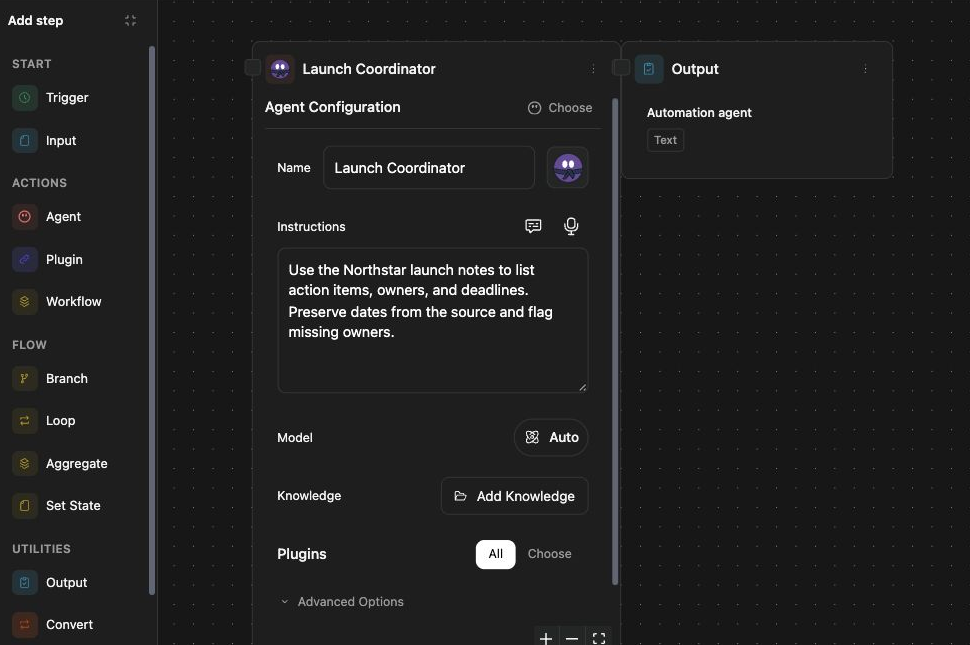
Configure a Step
Section titled “Configure a Step”- Open the workflow editor and select a step, or add one from the offered palette.
- Fill its required fields and map inputs from earlier steps or run inputs.
- Connect its outputs to the next step and resolve validation issues.
- Wait for the workflow to save, then run it with a small, bounded input.
- Inspect the step’s result and final output before enabling automatic triggers.
The type keys below help identify steps in an exported workflow definition. You usually configure the step through the editor rather than typing its key.
Triggers
Section titled “Triggers”| Step | Type Key | Purpose |
|---|---|---|
| Schedule | trigger.schedule |
Start runs on a configured schedule. Check the time zone and next run. |
| On File Added To Folder | trigger.on_file_added |
Start when a file is added to the selected folder. |
| On Email Added To Folder | trigger.on_email |
Start from email added to the configured folder. |
| Slack Mention | trigger.slack_message |
Start from a supported Slack mention with the integration configured. |
| Microsoft Teams Mention | trigger.microsoft_teams_message |
Start from a supported Teams mention with the integration configured. |
Inputs, Outputs, and Reuse
Section titled “Inputs, Outputs, and Reuse”| Step | Type Key | Purpose |
|---|---|---|
| Workflow Input | workflow.input |
Declare input that a run needs, such as launch notes. |
| Workflow Output | workflow.output |
Return a selected result as the workflow output. |
| Run Workflow | workflow.invoke |
Call another workflow with mapped inputs. |
| Note | system.note |
Explain the graph for editors; this is not an app action. |
Logic and Approvals
Section titled “Logic and Approvals”| Step | Type Key | Purpose |
|---|---|---|
| Loop | logic.loop |
Process a collection of items through connected steps. |
| Aggregate | logic.aggregate |
Combine results into a collection for later steps. |
| Branch | logic.branch |
Route work according to a configured condition. |
| User Approval | logic.approval |
Pause for a user decision before continuing. |
| Set State | logic.set_state |
Store a value for later workflow steps. |
Generation, Search, and Files
Section titled “Generation, Search, and Files”| Step | Type Key | Purpose |
|---|---|---|
| Agent | agent |
Run an agent using mapped messages and optional Knowledge. |
| Search Knowledge | tool.file_search |
Search authorized Knowledge using supplied queries. |
| Search Web | tool.web_search |
Search the web using supplied queries when available. |
| Convert Format | convert.format |
Convert supplied data to the configured format. |
| Save To Folder | save.to_folder |
Save supplied content or artifacts in an authorized destination. |
App, Database, and Notification Actions
Section titled “App, Database, and Notification Actions”| Step | Type Key | Purpose |
|---|---|---|
| Plugin | app.action |
Run an offered workflow action from an enabled plugin. |
| Generate SQL | sql.generate |
Generate a query for the selected database context. |
| Execute SQL | sql.execute |
Execute configured SQL or an approved routine with database policy enforcement. |
| Send SMS | notify.sms |
Send a text message through the configured SMS capability. |
| Send Email | notify.email |
Send email through the configured email capability. |
| Query Site DB | site.db.query |
Query the selected site database with the required access. |
| Write Site DB | site.db.write |
Change the selected site database with the required access. |
| Step | Type Key | Purpose |
|---|---|---|
| Read Tasks | task.read |
Retrieve authorized tasks for the workflow. |
| Create Task | task.create |
Create a task using supplied task fields. |
| Update Task | task.update |
Change an existing task using its identifier. |
| Archive Task | task.delete |
Archive an identified task; this is not permanent deletion. |
Check Dependencies and Results
Section titled “Check Dependencies and Results”Generating SQL does not execute it. A notification or plugin step may perform an external action, so verify recipients and destinations before running it. Knowledge, database, task, and site actions require access to their targets. Provider setup, usage limits, approval decisions, and validation can prevent an otherwise valid workflow from completing.
Inspect failed or waiting steps in the run results. If an external action’s outcome is uncertain, check the destination before retrying so you do not create duplicates.
Related: first workflow, inputs and variables, logic, triggers, and results.