SendGrid
Use SendGrid to send a reviewed transactional email through your organization’s configured sender.
Before you start
Section titled “Before you start”Open Customize → Plugins and select this plugin. Add installs an available package; Uninstall means it is already installed. An offered Update refreshes its package version. Your deployment and administrator policy determine availability.
When Add Account is offered, follow its connection instructions using an authorized account that owns or can access the intended resource. If several accounts are connected, check the selected account and Default before the task. Reconnect refreshes an expired connection; an administrator setup notice needs administrator configuration.
Enable the plugin for the selected agent or task. On an installed plugin’s Tools table, check Enabled and the Approval setting for the operations you intend to use. New tasks use these settings; a pending approval still needs a decision. See agent setup and action approvals.
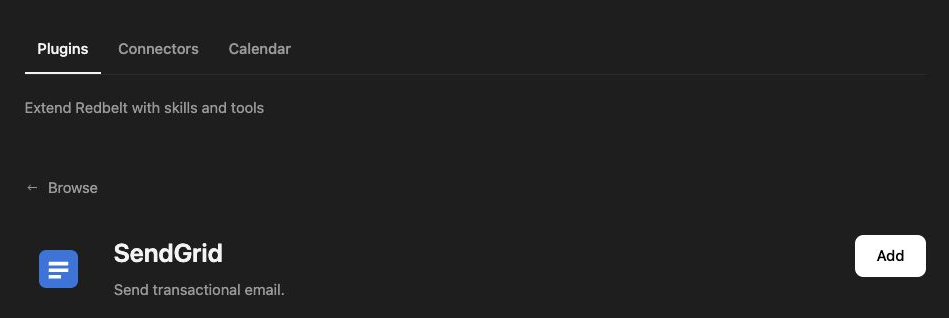
Plugin details under Customize → Plugins. The button shows the current installation state.
Send a launch confirmation
Section titled “Send a launch confirmation”- Confirm the connected SendGrid account and its configured default sender. An administrator may need to complete the provider setup.
- Specify the intended recipient list, subject, and message body.
- Prepare an appointment confirmation with the exact date, time, time zone, and location you supply.
- Review the recipient addresses and content before asking Redbelt to send.
- Inspect the returned provider result. Check delivery through your normal mailbox or provider delivery reporting if receipt matters.
Prepare a transactional appointment-confirmation email using the date, time, time zone, and recipient address I provide. Use a clear subject and a short plain-text body. Show me the email and configured sender before sending it.
Supply a complete message
Section titled “Supply a complete message”The tool requires recipients and a subject, plus usable plain-text or HTML body content. A request with no body is not a complete email. HTML content should remain readable and provide the same essential information as the plain-text version when both are supplied.
This operation uses the connected account’s configured default sender. It does not expose an arbitrary From-address override, inbox search, or draft-management tool. A draft shown in the Redbelt thread is a proposal, not a saved provider draft.
Provider acceptance is not proof of inbox delivery. If a run stops after the send, inspect the available delivery record before retrying to avoid sending the same confirmation twice. Use this guide for an individual transactional message rather than assuming it configures a bulk campaign.
Tool Reference
Section titled “Tool Reference”Thread and workflow availability are listed separately. A tool must also be enabled for your task and allowed by its account and administrator policy. Configure workflow app actions using only actions offered by the current picker.
Available Tools
Section titled “Available Tools”| Tool | Required Fields | Thread | Workflow |
|---|---|---|---|
sendgrid.send_email |
to, subject |
Yes | Yes |
Required fields above are the schema minimum. The target, selected operation, or account can impose additional requirements.
sendgrid.send_email — Send a transactional email using the connected SendGrid account’s configured default sender.
Optional fields: html_body, text_body.
Troubleshoot
Section titled “Troubleshoot”For a sender or authentication error, ask your administrator to check the SendGrid connection and verified sender configuration. For a delivery issue, inspect the provider result and delivery status before changing the message or retrying.
Provider details: SendGrid documentation.