Images
Use Images to create a raster visual or edit an existing image, then inspect and return the resulting artifact.
Before you start
Section titled “Before you start”Open Customize → Plugins and select this plugin. Choose Add if it is available and not installed; Uninstall means it is already installed. Availability depends on the deployment and administrator policy. Enable the plugin for the selected agent or task using agent setup.
This package does not require a separate external app account for its own Redbelt tools. Its work can still depend on configured services, sandbox availability, selected files, or a separate authorized connection. Adding the package does not grant access to additional data. Review the installed tool controls and handle any requested action approval.
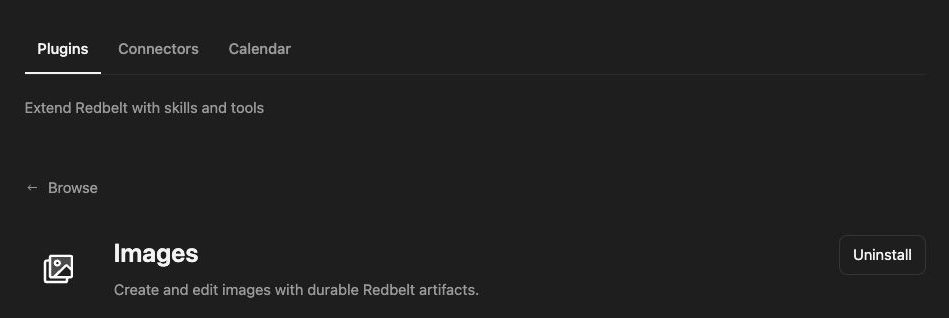
Plugin details under Customize → Plugins. The button shows the current installation state.
Create a launch header image
Section titled “Create a launch header image”- Describe the intended use, composition, dimensions, and visual style.
- Specify whether the background should be opaque or transparent and how many variants you need.
- Review the generated image in the Redbelt response for fit, unwanted text, and visual errors.
- For an edit, select the actual image reference and describe the change precisely.
- Return the chosen version as the final artifact after inspecting it.
Create a wide header image for a project brief: an abstract horizon with restrained navy and warm red accents, generous empty space on the left for a heading, and no text or logos. Use an opaque background and return one version.
Choose creation or editing
Section titled “Choose creation or editing”Creation needs a prompt. Editing needs a prompt and an existing image reference, with additional references when necessary. Use the supported image or artifact references instead of an unrelated file path that the tool cannot access.
Fast and best-quality modes have different generation tradeoffs. Supported dimensions and the allowed variant count are bounded by the tool contract. Transparent output must be requested deliberately and checked afterward.
A generated image is artwork, not evidence that a product page or workflow exists. Use real screenshots for documentation of Redbelt interfaces. When preserving an existing design, explain what should remain and inspect the edited result for unintended changes.
Tool Reference
Section titled “Tool Reference”Thread and workflow availability are listed separately. A tool must also be enabled for your task and allowed by its account and administrator policy. Configure workflow app actions using only actions offered by the current picker.
Available Tools
Section titled “Available Tools”| Tool | Required Fields | Thread | Workflow |
|---|---|---|---|
image.create |
prompt |
Yes | No |
image.edit |
prompt, image_ref |
Yes | No |
Required fields above are the schema minimum. The target, selected operation, or account can impose additional requirements.
image.create — Create a new image from a prompt, optionally guided by images from Knowledge or the thread.
Optional fields: image_name, mode, num_images, reference_image_refs, size, transparent_background.
image.edit — Modify an existing image using instructions, preserving its layout or details as requested.
Optional fields: image_name, mode, size, transparent_background.
Troubleshoot
Section titled “Troubleshoot”If an edit cannot resolve its source, provide the current uploaded image or artifact reference. If the output does not fit the use, refine the prompt using the visible result rather than claiming the first version passed review.