Change Profile and Appearance Settings
Profile settings describe your account. Appearance preferences change the interface you use; they do not change other workspace members’ profiles or permissions.
Make the Interface Comfortable
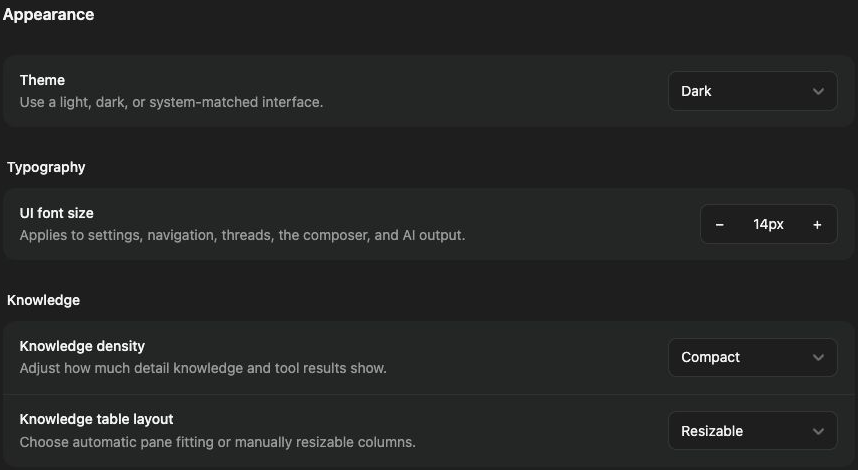
Section titled “Make the Interface Comfortable”Appearance preferences help you balance space and readability. A compact Knowledge layout fits more rows; a larger font is easier to read. Try the preference in a real folder or thread rather than judging only the settings page.
Profile edits describe your account; theme and layout preferences change how you see the app. They do not alter another member’s access or the content of an answer. If a name or identity field is controlled by your sign-in provider, use its supported change path.
Update your profile
Section titled “Update your profile”- Open Settings → Profile.
- Review the profile fields and account identity shown there.
- Edit the fields your deployment allows and confirm they are saved.
- Reopen the page to verify the result.
Some identity fields are managed by your sign-in provider. If a field is not editable, use that provider or ask your administrator rather than creating a second account to change a display name.
Adjust appearance
Section titled “Adjust appearance”Appearance preferences live where you use them:
- Settings → General has Theme for light, dark, or system-matched appearance and UI font size for readable interface text.
- In Knowledge, the Columns menu above a folder’s table sets Density and Column widths (fit to pane or resizable) alongside the visible columns.
- Settings → Threads has Thread details: where thread links open, reasoning-control appearance, composer emphasis, unread indicators, and date headers with their format.
Make one change and inspect a representative thread or Knowledge folder. A compact layout can fit more rows but reduce visible detail.
Check the result
Section titled “Check the result”Return to the app and confirm the expected appearance. If a preference does not persist, inspect the save result and account selection. Model reasoning-display settings control the interface; they do not grant access to unavailable models.
Related: personal instructions and shortcuts and navigation.