Google Forms
Use Google Forms to create a form, inspect its structure, and review submitted responses available to the connected account.
Before you start
Section titled “Before you start”Open Customize → Plugins and select this plugin. Add installs an available package; Uninstall means it is already installed. An offered Update refreshes its package version. Your deployment and administrator policy determine availability.
When Add Account is offered, follow its connection instructions using an authorized account that owns or can access the intended resource. If several accounts are connected, check the selected account and Default before the task. Reconnect refreshes an expired connection; an administrator setup notice needs administrator configuration.
Enable the plugin for the selected agent or task. On an installed plugin’s Tools table, check Enabled and the Approval setting for the operations you intend to use. New tasks use these settings; a pending approval still needs a decision. See agent setup and action approvals.
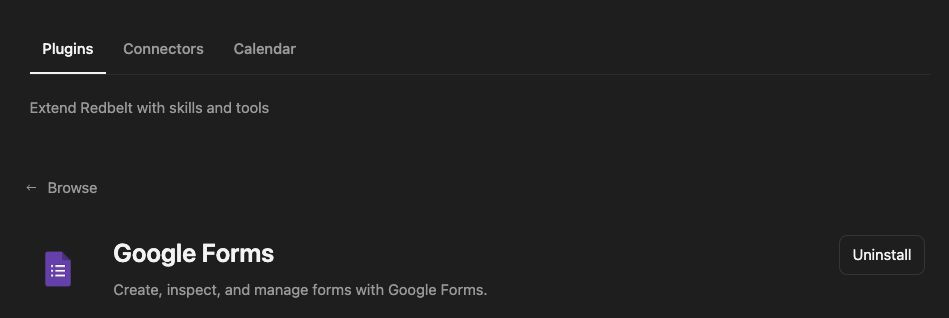
Plugin details under Customize → Plugins. The button shows the current installation state.
Start a launch feedback form
Section titled “Start a launch feedback form”- Ask Redbelt to create a form such as Project Feedback with a concise description explaining the purpose of the feedback.
- Read the created form to confirm its title and description.
- Use the returned form link to complete the questions and response settings in Google Forms.
- Once responses exist, ask Redbelt to list responses from that form and summarize the themes without inventing missing answers.
- Follow any returned pagination to include the intended set of responses.
Prepare a Google Form titled Project Feedback with this description: Help us improve the project experience. Share what worked well and where the process could be clearer. Show me the title and description before creating it.
Understand the current scope
Section titled “Understand the current scope”Form creation is the starting point. The current plugin does not expose a question-editing or form-settings tool, so creating the form does not build a complete survey. Question types, respondent access, and collection settings belong in the provider’s form editor.
The available read retrieves the form definition. The response-list operation retrieves submissions; an empty list can mean no submissions match the request. The catalog includes a single-response entry, but that entry is disabled. Use the enabled list operation and inspect the returned response identifiers.
Do not confuse a form’s editable ID with its respondent-facing link. Choose the form returned by creation or discovery, not a guessed URL.
Tool Reference
Section titled “Tool Reference”Thread and workflow availability are listed separately. A tool must also be enabled for your task and allowed by its account and administrator policy. Configure workflow app actions using only actions offered by the current picker.
Available Tools
Section titled “Available Tools”| Tool | Required Fields | Thread | Workflow |
|---|---|---|---|
google_forms.create |
title |
Yes | Yes |
google_forms.get_form |
form_id |
Yes | Yes |
google_forms.list_form_responses |
form_id |
Yes | Yes |
Required fields above are the schema minimum. The target, selected operation, or account can impose additional requirements.
google_forms.create — Create a Google Form.
Optional fields: description, document_title.
google_forms.get_form — Get a Google Form by ID.
google_forms.list_form_responses — List responses for a Google Form.
Optional fields: page_size.
Troubleshoot
Section titled “Troubleshoot”If responses are missing, confirm the form ID, account access, response filters, and whether submissions actually exist. Adding the plugin does not grant access to every form.
Provider details: Google Forms help.