Computer
Use Computer to observe and interact with applications inside Redbelt’s sandbox desktop using current accessibility state and screenshots.
Before you start
Section titled “Before you start”Open Customize → Plugins and select this plugin. Choose Add if it is available and not installed; Uninstall means it is already installed. Availability depends on the deployment and administrator policy. Enable the plugin for the selected agent or task using agent setup.
This package does not require a separate external app account for its own Redbelt tools. Its work can still depend on configured services, sandbox availability, selected files, or a separate authorized connection. Adding the package does not grant access to additional data. Review the installed tool controls and handle any requested action approval.
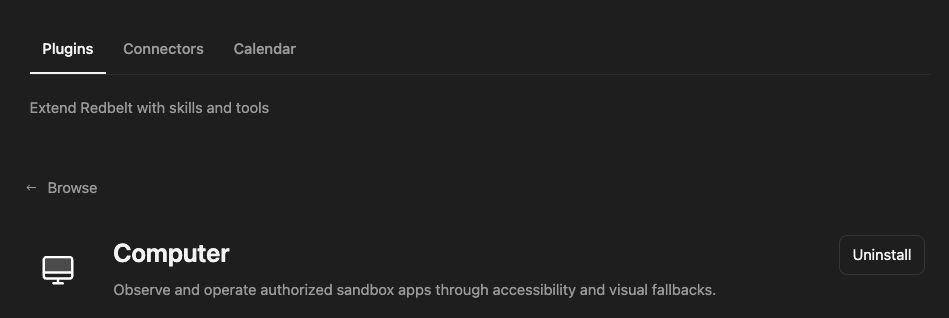
Plugin details under Customize → Plugins. The button shows the current installation state.
Complete a visible app task
Section titled “Complete a visible app task”- Ask Redbelt to work in a sandbox app, such as the browser, files, terminal, or an office app.
- Redbelt observes the app first: the window described in words, with a screenshot when the layout matters.
- It acts toward a short goal, or runs exact steps for typing, shortcuts, and controls that need precision.
- Before a control that submits, sends, deletes, purchases, or overwrites, it hands control back instead of guessing.
- It finishes by checking the outcomes the task should leave behind, such as a cell value or a saved file’s setting.
In the sandbox browser, open the report page I provide and select its weekly view. Check the resulting date range before summarizing the page. Ask me to handle any account step that requires my participation.
Observe, act, and verify
Section titled “Observe, act, and verify”Observe reads one app: open dialogs, the focused element, and each region’s named controls with their values. It can answer a specific question from the window’s text, add a screenshot, open a document by path, or verify up to 20 expected outcomes. Without an app, it lists the apps available to the task.
Act works toward a goal in a few quick actions, following the controls and field values you can foresee, or runs up to 12 exact steps such as clicks, typing, key presses, scrolling, and dragging. Control positions can change after each action, so Redbelt observes again rather than reusing stale positions.
Computer controls the sandbox desktop, not an unrestricted view of your physical computer. Use Browser for browser tab management, navigation, download tracking, and upload coordination. Review sends, uploads, and settings changes before requesting them.
Tool Reference
Section titled “Tool Reference”Thread and workflow availability are listed separately. A tool must also be enabled for your task and allowed by its account and administrator policy. Configure workflow app actions using only actions offered by the current picker.
Available Tools
Section titled “Available Tools”| Tool | Required Fields | Thread | Workflow |
|---|---|---|---|
computer.act |
app |
Yes | No |
computer.observe |
No mandatory top-level fields | Yes | No |
computer.record |
action |
Yes | No |
Required fields above are the schema minimum. The target, selected operation, or account can impose additional requirements.
computer.act — Carry out a goal or a set of steps in one app on the task’s computer.
Optional fields: goal, route, values, steps, until, max_actions, question, screenshot.
computer.observe — Describe what one app on the task’s computer is showing, opening the app if needed.
Optional fields: app, question, screenshot, open, claims.
computer.record — Record the desktop as a video, only when the person asks for one (a recording of a test, a demo of a fix).
Optional fields: label.
Troubleshoot
Section titled “Troubleshoot”If a control is absent or the action changes nothing, observe the app again and identify the blocker. Do not repeatedly click a stale position or assume an unseen dialog was accepted.