Sync GraphQL
The GraphQL connector imports content from a configured GraphQL endpoint. It needs queries and mappings that match that endpoint’s schema; a URL alone is insufficient. Have a technical owner review the source schema before starting a full import.
Before you start
Section titled “Before you start”You need an authorized endpoint, its authentication requirements, and the fields used to identify, fetch, and date each article. Identify the list response’s pagination format and the detail lookup ID. Choose a small source set for the first preview.
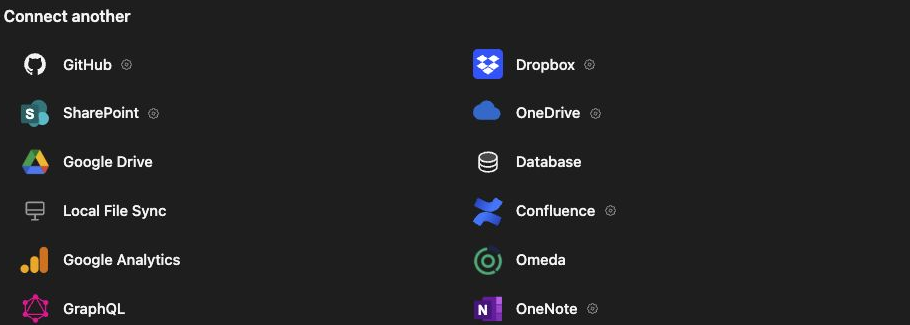
Configure the content source
Section titled “Configure the content source”- Open Knowledge → Connectors and choose GraphQL.
- Enter Connection name, GraphQL endpoint, and Import changes starting.
- Select Authentication method: None, Bearer token, API key, Custom secret header, or Saved headers, as required by your endpoint.
- Put credentials in the corresponding secret fields. Use Non-secret headers (JSON) only for headers that contain no credentials.
- Review Content field mapping. Match the collection and detail fields, article and lookup IDs, content body, title, source website, and date fields.
- Add any Additional field selections (one per line) needed by your source.
- Review Pagination and advanced configuration and select Relay cursor, Page number, Offset, or None to match the endpoint.
- Inspect the generated list and detail queries. Use Edit list query or Edit detail query only when the generated queries need adjustment.
- Click Preview content and inspect the returned article content and mappings.
- Click Save and preview import, review the proposed files, then Start sync.
When editing, leave a secret blank to retain its saved value. Keep identifiers stable: changing article IDs or the external ID template can change how records are recognized.
Verify and maintain the import
Section titled “Verify and maintain the import”Open a resulting JSON file in Knowledge and check its title, content, identifiers, and dates against the source article. Configure content join keys consistently when combining CMS content with Analytics or Omeda data. A title match alone is not a reliable join between systems.
The advanced settings include page size, lookback seconds, sync frequency, query variable names, response paths, and Include raw source in output. Review raw source inclusion before importing fields that are unnecessary for your use case.
Troubleshooting
Section titled “Troubleshooting”For empty previews, check authentication, query field names, date filters, and the response paths used for pagination. For partial imports, check the next-page fields and variable names. A successful first page does not establish that pagination works. Re-preview after changing a mapping or query before saving and importing again.
Related: Google Analytics, Omeda, and Knowledge organization.