Create and Manage API Keys
An API key authenticates requests to Redbelt as a particular identity. Use it for server-side integrations and automation.
Before you start
Section titled “Before you start”Select the correct organization. You need organization API access to see the Developer page, and permission to edit admin settings to create or revoke a key. Creation and revocation can require a recent sign-in.
Create a key
Section titled “Create a key”- Open Settings → Developer.
- Under API keys, click Create key.
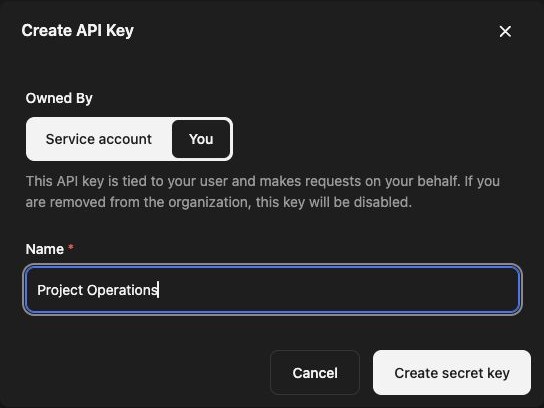
- Under Owned By, choose the identity:
- Service account: adds a bot user to your organization.
- You: makes requests as your user. Removing you from the organization disables this key.
- Enter a recognizable Name, such as Reporting integration.
- For a service account, choose whether to enable Auto share resources with creator. This shares newly created resources with you for supported resource types; existing private resources still need their own permissions. This setting does not transfer ownership of API threads or let you read a service user’s thread in the browser.
- Click Create secret key.
- In Save your key, use Copy and store the secret before clicking Done.
The full secret is shown once. The key list shows identifiers and dates so you can recognize keys later; it does not let you recover the original secret.
Store and use the secret
Section titled “Store and use the secret”Keep the key in a secret manager or a protected environment variable. Send it in the HTTP Authorization header as Bearer YOUR_API_KEY. Do not place it in a URL, public frontend code, a screenshot, or a committed file.
For an example request, follow the API quickstart.
Revoke a key
Section titled “Revoke a key”- Return to Settings → Developer → API keys.
- Find the key by its name and dates.
- Click Revoke and complete the confirmation.
Requests using that key will no longer authenticate. Update any integrations that depend on it. Revoking a key does not delete files or threads it previously created.
Troubleshooting
Section titled “Troubleshooting”If Create key or Revoke is unavailable, ask an organization administrator to check your permissions. If the dialog offers Sign in again, reauthenticate and retry the operation. If you lost the secret, create a replacement and revoke the key you can no longer use.