Configure a Meeting Notetaker
Configure attendance before a meeting starts. Calendar authorization alone does not turn the notetaker on for every event.
Match Coverage to the Meeting
Section titled “Match Coverage to the Meeting”Choose coverage deliberately: a weekly launch review may benefit from recurring notes, while a one-off planning session may need only one occurrence. Review the offered attendance choices and summary template before enabling coverage.
The template shapes the summary you receive—for example decisions, action items, and open questions. It does not change what was said in the meeting. Automatic calendar coverage needs a connected calendar and saved configuration; verify the actual meeting’s attendance and processing result before relying on its notes.
Choose the attendance mode
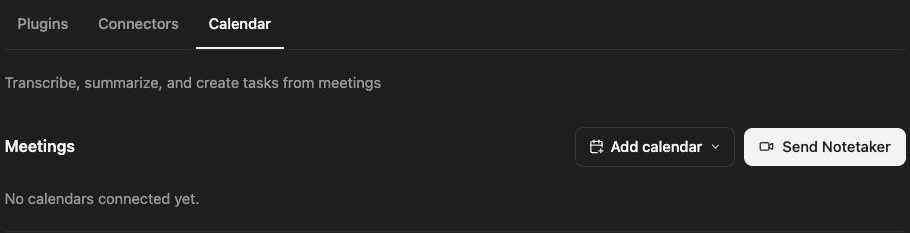
Section titled “Choose the attendance mode”Open Customize → Calendar and inspect Notetaker:
| Mode | Behavior |
|---|---|
| Off | Stops automatic meeting selection through this setting |
| Pick meetings | Joins meetings you switch on individually |
| All meetings | Selects eligible meetings with video links; individual exclusions still matter |
Choose a mode, review any excluded calendar connections, and confirm the saved state. Check your organization’s meeting-recording requirements before enabling attendance for other participants.
Configure a specific meeting
Section titled “Configure a specific meeting”- Find the event in Upcoming.
- Review its notetaker toggle and settings.
- Choose the Summary template appropriate to the meeting.
- If asked, choose whether a change applies to this occurrence or the series.
- Confirm the event’s effective attendance state.
For a launch review, use a template that captures decisions, owners, deadlines, and unresolved questions. A meeting-specific setting can override broader defaults.
Send a notetaker manually
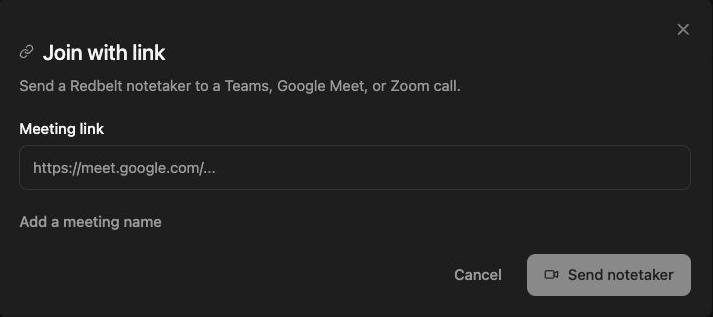
Section titled “Send a notetaker manually”Where Send Notetaker is available, open it and supply the intended meeting link and required fields. Verify the joining state in Redbelt and the actual meeting. Waiting-room admission or provider restrictions can prevent attendance. An enabled toggle is not proof that audio was captured.
Related: calendar connections, live questions, and results.