Inspect Workflow Runs and Troubleshoot Failures
Inspect the run rather than relying only on the workflow’s saved configuration. Successful earlier steps can coexist with a failed final action.
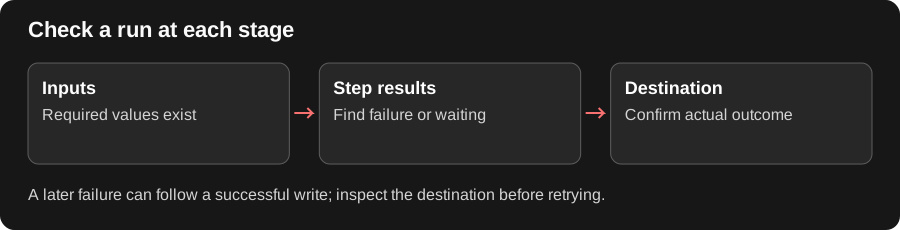
Find the First Failure
Section titled “Find the First Failure”A workflow may finish several steps before one fails. Start at the first failed or waiting step, inspect the value it received, and compare it with that step’s required fields. Later steps can have no output simply because the earlier dependency never completed.
For an external write, check whether the target was changed before retrying. A file may have been created even if a later notification failed. Rerunning the entire flow without checking can create another file or send another message. Use run history to distinguish separate attempts.
Read a run
Section titled “Read a run”- Open the workflow’s run view and relevant run timeline.
- Confirm the supplied inputs and the trigger that started it.
- Expand step activity to inspect outputs and errors.
- Resolve any pending question or approval.
- Confirm the final output and any destination-app changes.
For a checklist workflow, compare owners and deadlines with the input. For an app action, follow the returned file or message reference and inspect the result in that app.
Recover deliberately
Section titled “Recover deliberately”| Situation | Next check |
|---|---|
| Missing required input | Complete the run form or upstream binding |
| Waiting for approval | Review the exact proposed action |
| Permission or not-found error | Check account, resource ID, and access |
| Worker or sandbox interruption | Check runtime availability with an administrator |
| Unknown write outcome | Inspect the destination before retrying |
Correct the cause before repeating a run. Retrying a workflow can repeat earlier writes even if a later step was the only failure. Use read-only checks or a small input while diagnosing an external action.
Review repeated behavior
Section titled “Review repeated behavior”The workflow actions menu offers Analytics for the workflow’s available run analysis. Check automatic triggers if failures recur without a manual start. Save corrected configuration before another attempt.
Related: triggers and app actions.