Configure Directory Sync
Directory sync brings organization membership or group information from the configured identity system. It requires administrator access and deployment support for the identity integration.
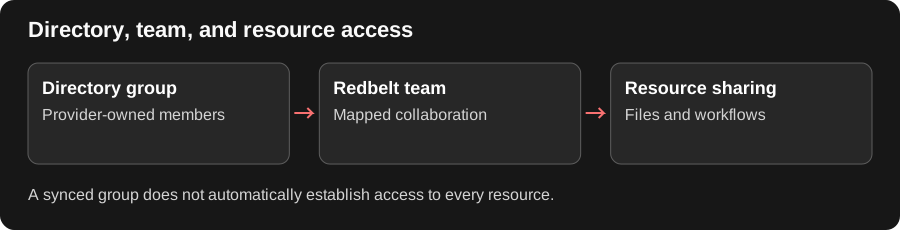
Keep One Owner for Membership
Section titled “Keep One Owner for Membership”Directory sync is useful when your identity system already owns groups and membership. Group mappings let that organization structure inform Redbelt teams instead of maintaining two unrelated member lists.
Check the intended group and its members, not just the group’s name. A successful directory sync does not share every file with that group. Review team mappings and resource access separately, and follow the provider-owned path for values managed by the directory.
Set up and inspect
Section titled “Set up and inspect”- Open Settings → Organization.
- Under Identity and security, find Directory Sync and click Manage.
- Use Configure Directory Sync to open the offered provider setup.
- Complete the administrator configuration for the intended organization.
- Return to Redbelt and inspect connection status and Synced Groups.
Do not configure an unrelated directory simply because it is already signed in in the browser. Confirm the organization and intended provisioning scope before enabling group or member synchronization.
Review group mappings
Section titled “Review group mappings”Inspect how synced groups correspond to Redbelt teams. For a launch team, check the specific group membership rather than relying on a similarly named group. Treat directory-managed values as provider-owned unless the UI explicitly offers a supported local override.
Check changes
Section titled “Check changes”After a provider-side membership change, inspect the sync state and resulting Redbelt membership. Syncing a group does not establish access to every document; review team sharing separately.
If groups are missing or stale, check provider connection health, selected scope, and synchronization status. Escalate failed identity configuration to the deployment administrator rather than duplicating directory-managed users manually.
Related: members and teams, roles, and sharing.