Share Resources and Manage Access
Share a folder or resource when a teammate needs access to the same work. Keep private drafts private until you have chosen the intended audience.
Separate Resource Access from App Access
Section titled “Separate Resource Access from App Access”Resource sharing controls who can read or edit the Redbelt work. Plugin sign-in controls what an external account can access. Sharing a launch workflow with a colleague does not give their Google account permission to a restricted Drive folder.
Choose an audience that matches the work: a launch team for ongoing collaboration, or named reviewers for a narrower review. Check the offered read and edit levels rather than granting edit access just so someone can open a file. Parent or team access may also contribute to effective access.
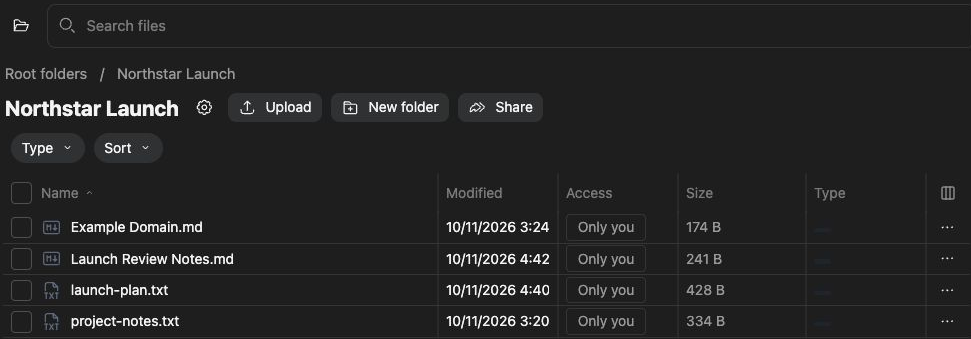
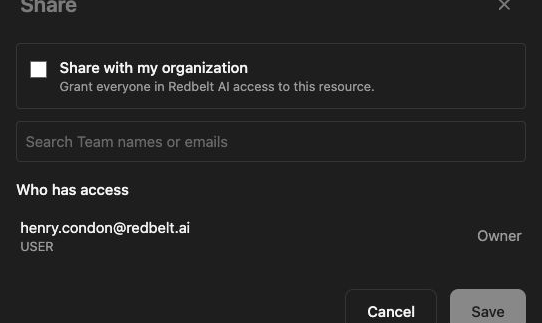
Before you start
Section titled “Before you start”You need permission to manage sharing. Workspace policy can limit which people, teams, or organization-wide options are available. Sharing does not connect an external Google or Microsoft account on another user’s behalf.
Share a resource
Section titled “Share a resource”- Open the file or folder you want to share.
- Open its sharing control, such as Share folder.
- Select the intended people, team, or workspace audience offered by the dialog.
- Choose the available access level appropriate to their work.
- Save the change and reopen sharing to confirm the audience and permissions.
For a project’s reviewers, give access to that project’s folder rather than the entire unrelated project library. Read access and edit access have different effects; choose the narrower permission that supports the task.
Remove or troubleshoot access
Section titled “Remove or troubleshoot access”Use the same sharing dialog to review and remove grants you manage. Inherited access can require a change at the parent or team rather than the child file. If a teammate still cannot open the file, confirm their account, workspace membership, and the exact resource link.
Check access again after moving a resource. A visible link or an agent’s citation does not itself establish that another person can open it.
Related: members and teams and organize files.