Invite Members and Manage Teams
Members belong to the organization; teams group members for collaboration. Inviting a person and sharing a particular file are separate changes.
Membership, Teams, and Sharing Work Together
Section titled “Membership, Teams, and Sharing Work Together”Membership brings a person into the organization. A team groups people for collaboration. Resource sharing grants access to a particular folder, workflow, or other resource. These are related decisions, but completing one does not automatically complete the others.
For launch reviewers, confirm membership, add the intended people to the review team if appropriate, and check sharing on the launch folder. An invitation is still pending until accepted. Directory-managed membership may need to be changed at the identity provider.
Before you start
Section titled “Before you start”Select the intended workspace and confirm permission to manage invitations or membership. Invitation policy, plan capacity, and directory ownership can limit which changes are available.
Invite a member
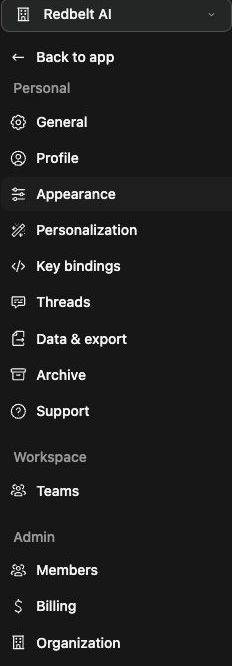
Section titled “Invite a member”- Open Settings → Members.
- Choose Invite people.
- Enter the intended work email addresses and review the offered role choices.
- Check capacity and policy messages before sending invitations.
- Confirm the invitation state and, after acceptance, the member’s membership.
Use actual intended recipients. An invitation can be pending even when sending succeeded. Some users see an invitation-request path that an administrator must review.
Manage a team
Section titled “Manage a team”Open Settings → Teams, create or select the team, and use the offered member controls to add or remove people. Check team sharing on the resources the group needs. A directory-managed team may need changes in the identity provider.
Review member access
Section titled “Review member access”Inspect roles, usage limits, and permitted member settings in the Members view. Before removing membership, review shared work and continuity requirements. If a change is denied, check your permission, the current workspace, invitation capacity, and whether directory sync controls that membership.
Related: roles, directory sync, and resource sharing.