Search and Open Knowledge
Search Knowledge when you know part of a resource’s name or contents. Browse folders when you already know where the file belongs.
Search, Then Inspect
Section titled “Search, Then Inspect”Use distinctive words from the title when you know the file, or a phrase from the content when you do not. Narrowing type or scope helps separate a launch plan from a similarly named meeting note.
A suggestion is a way to open a result, not evidence that the current folder table has changed. Open the match and verify its date, folder, and contents before selecting it as context. This prevents an old plan with the right title from becoming the source for a new answer.
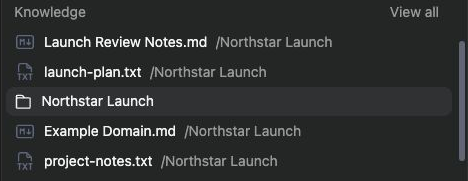
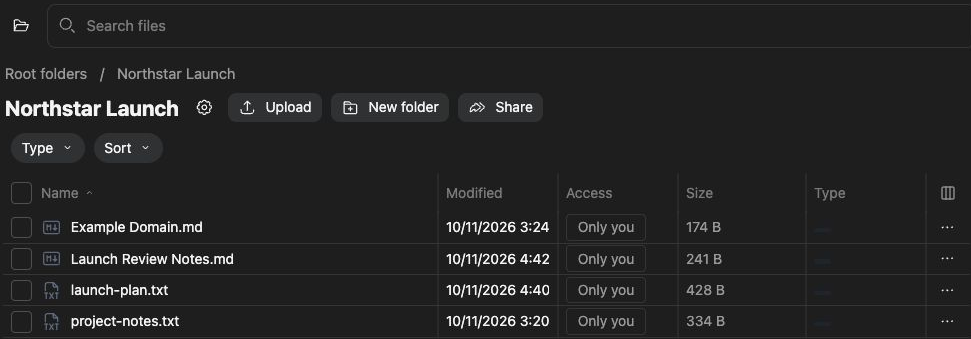
Find a resource
Section titled “Find a resource”- Open Knowledge.
- Enter a useful phrase in Search files, such as “launch plan.”
- Use the offered suggestions or submit the search to open its results.
- Narrow the available type or scope filters when needed.
- Open the matching resource and check its folder, title, and content.
Typing in a search field can show suggestions without replacing the current folder’s table. Select or submit the search rather than assuming the existing table has already been filtered.
Open the result
Section titled “Open the result”Click a file to preview it. Use Open or Open in new tab when you need the full resource view. A result can also provide a way to navigate to its containing folder. Inspect the actual content before adding it to a thread.
If the result is missing
Section titled “If the result is missing”Check the selected workspace, your access, spelling, and the current scope or type filters. Clear the search to return to ordinary browsing. A file that is still processing may not yet be searchable. For connected content, inspect the connection’s last sync and selected sources.
A search result does not grant permission to edit or share the resource.
Related: organize files, upload content, and thread context.