Copy and Download Answers
Copy an answer for use in another document, or download a generated file when you need the original artifact.
Choose Text, a File, or an Export
Section titled “Choose Text, a File, or an Export”Copy is useful when the answer itself belongs in a weekly update. Download is useful when the result is a Word document, spreadsheet, image, or other artifact you need to open in its own application. Bulk export is for retaining or moving multiple threads.
Choose the result you actually need. Copying an answer does not download its linked attachments, and opening a Google document does not make an offline copy. After pasting or downloading, check tables, citations, dates, and file contents in the destination.
Copy an answer
Section titled “Copy an answer”- Wait for the response to finish.
- Use the response’s copy control.
- Paste into the destination document and check formatting, links, and tables.
- Review the text before sharing it outside the workspace.
For a weekly launch update, check that owners and dates survive the paste. A copied status message from an interrupted run is not the requested finished answer.
Download a file or visual
Section titled “Download a file or visual”Open the artifact or image in the response and use its download control. Check the downloaded file opens in the intended application. A link to an external Google document opens that document; it is not necessarily a local file download.
Charts and diagrams can offer their own image or code controls. Choose the format appropriate to your destination, then inspect the exported result.
Export more than one thread
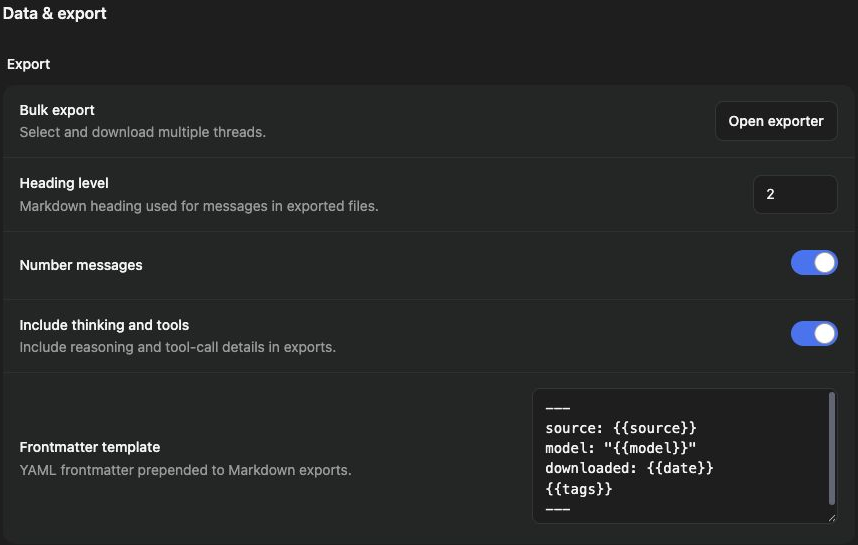
Section titled “Export more than one thread”Use Settings → Data & export → Open exporter for multiple threads. Review export settings before including tool details or other private context. If copying appears to do nothing, check the destination paste operation and browser clipboard permissions. Keep credential-bearing tool output out of shared documents.
Related: bulk export and citations.