Use the Workflow Editor
The workflow editor defines the flow’s behavior. Connections determine how results reach later steps; placing boxes near each other does not connect them.
Read the Graph as a Sequence
Section titled “Read the Graph as a Sequence”Follow the connections from the starting input through the actions to the output. An edge passes a dependency or value to the next step; nearby boxes alone do not establish that relationship.
Give each step a name that explains its role, such as Launch Notes or Draft Checklist. That makes references and failed-step messages easier to understand later. The editor’s save state tells you whether the definition persisted; the run’s status tells you whether executing that definition completed. You need both before relying on the workflow.
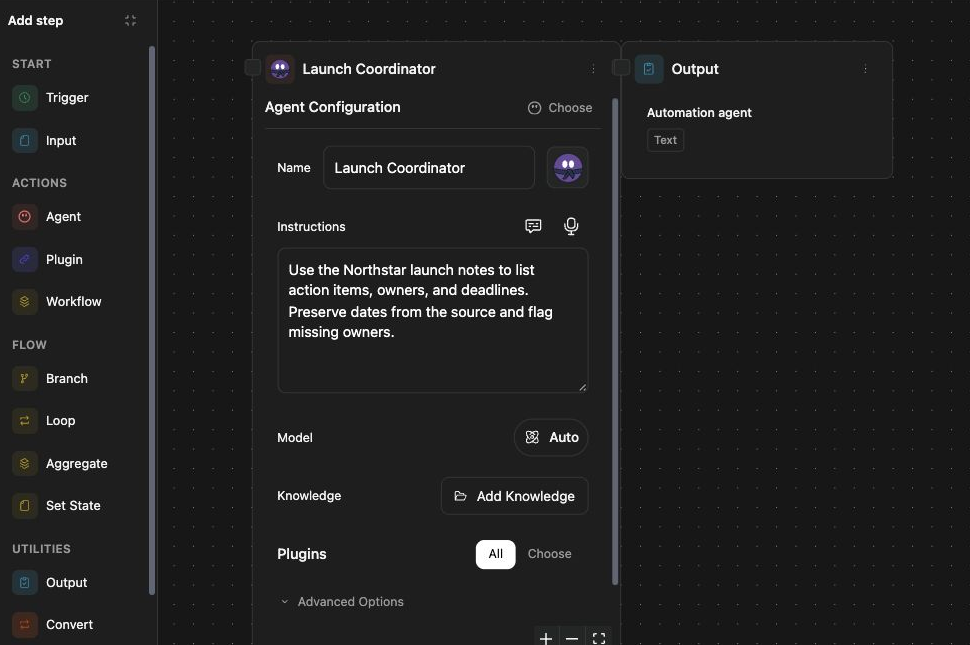
Edit a workflow
Section titled “Edit a workflow”- Open a workflow you can edit.
- Choose Advanced Editor if you need the graph view.
- Expand the step palette and choose or drag a step onto the canvas.
- Connect the relevant input and output ports.
- Select each step and fill its configuration.
- Inspect validation messages and correct their target steps.
- Wait for Saved before running or leaving the editor.
The palette groups Start, Actions, Flow, and Utilities. These include Input, Agent, Plugin, Workflow, Branch, Loop, Aggregate, Set State, Output, Convert, Save, and Note. Some catalog actions are exposed through step configuration rather than as separate palette buttons.
Check the graph
Section titled “Check the graph”Use a simple path first: launch notes → checklist agent → output. Give steps clear names so later references remain understandable. Configure branch routes and loop scopes deliberately; a result from one path may not exist on another.
Saving…, Saved, Save failed, and Read-only describe persistence or editing access. A valid-looking graph with a failed save is not ready to share or run. Correct save errors before reloading, and use an editable copy when the original is read-only.
Related: step reference, logic, and run results.