Read Transcripts, Summaries, and Suggested Tasks
After a recorded meeting, Redbelt processes the available transcript and summary into meeting resources. Processing can continue after the meeting ends.
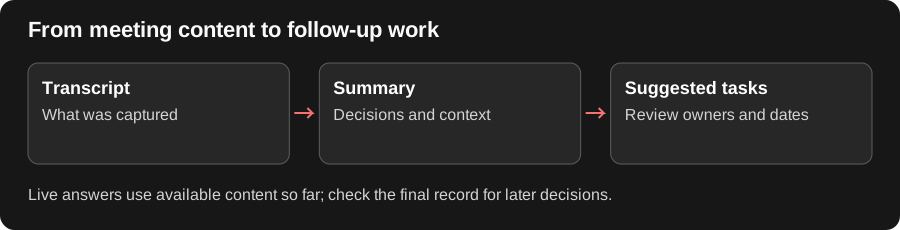
Use the Transcript to Check the Summary
Section titled “Use the Transcript to Check the Summary”The transcript is the record of what was captured; the summary organizes that material into a useful overview. Suggested tasks are proposed follow-up work. Review the relevant passage before relying on a decision, assigning an owner, or accepting a deadline.
If a summary includes an approval deadline, open the transcript around that discussion and confirm the date. Processing can finish in stages, so a meeting record appearing does not mean every summary or task is ready. Check each result you plan to use.
Open the meeting files
Section titled “Open the meeting files”- Find the completed meeting in the calendar view.
- Use View transcript and summary, or View available files while processing.
- Open the transcript and check important statements and speakers.
- Open the summary and compare decisions and action items with the transcript.
- Review any suggested tasks before accepting them.
For a project review, verify that each action’s owner and deadline match what was actually agreed. A summary is a generated interpretation; use the transcript to resolve a discrepancy.
Review suggested tasks
Section titled “Review suggested tasks”A suggestion is not automatically an accepted task. Check its title, destination folder, assignee, dates, and priority. Edit it as needed and use the offered acceptance control. Confirm the accepted task appears in the intended Tasks folder.
If files are incomplete
Section titled “If files are incomplete”Inspect the meeting’s processing or failure state and the available files. A meeting can have a transcript before its summary is ready. If no capture was made, check attendance and provider health rather than expecting processing to recreate missing audio. Check sharing before distributing meeting files.